Guide

Electronic Ticket Guide

Mrs. GREEN APPLE Official App

How to use electronic tickets

I got my ticket through the app on the day of the performance.
You can enter with an electronic ticket.

Electronic ticket issuance process

: . English: . . . .

STEP1.

Download the app

Jump to STEP 1

Image icon showing electronic ticket being issued in the app.

STEP2.

Issue electronic tickets

Jump to STEP 2

Image icon showing a stamp being applied to an electronic ticket in an app.

On the day of the performance

Easy entry with your smartphone

Fly on the day of the performance

STEP.1

Download the app

A Plus member ID is required to use electronic tickets.
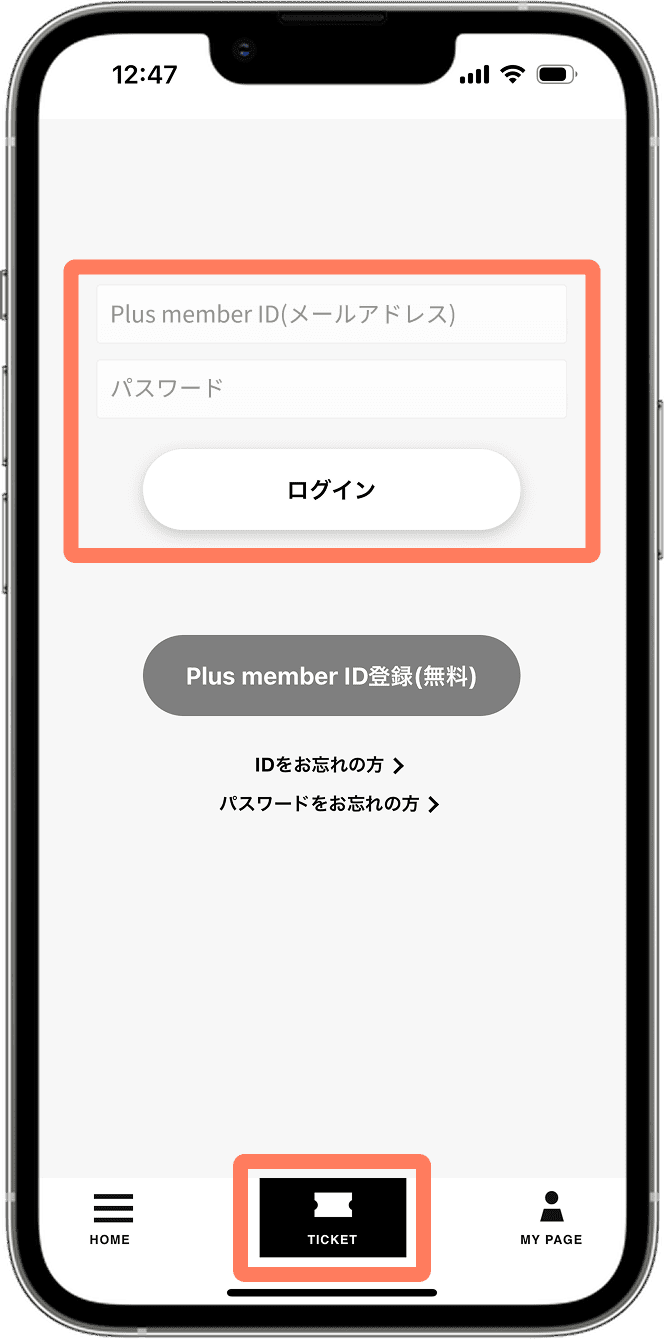
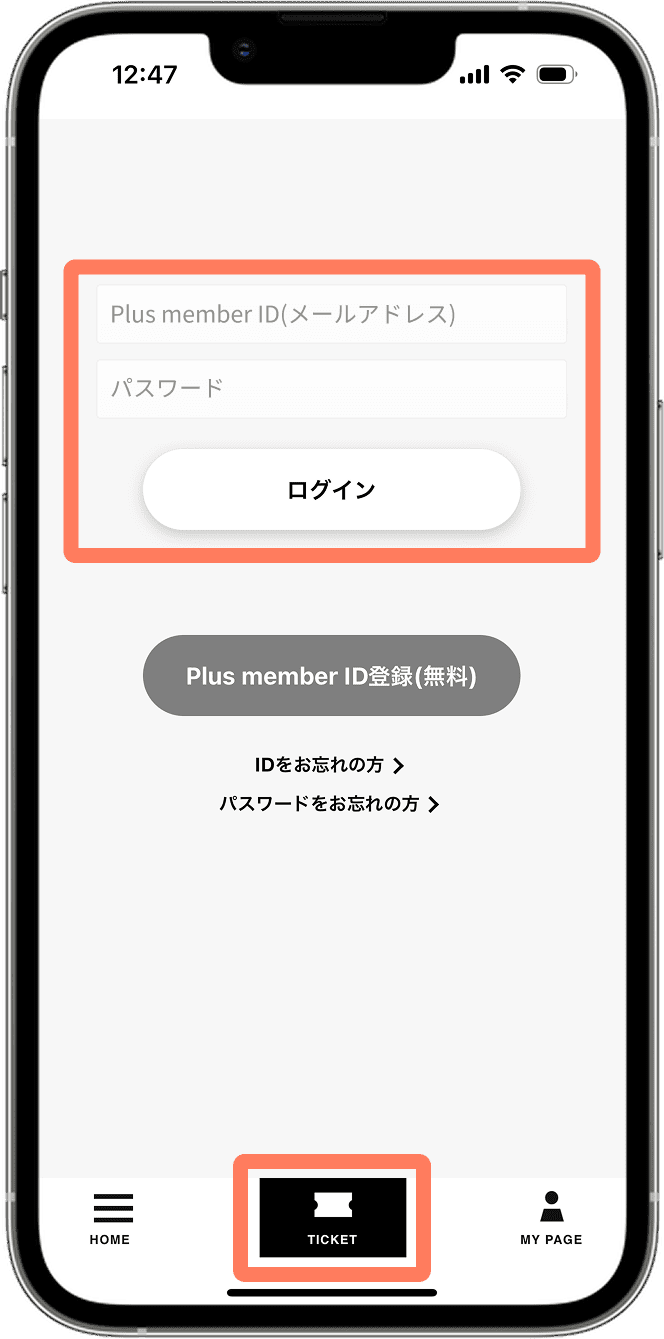
1. Download the official Mrs. GREEN APPLE app and log in.

Download the official Mrs. GREEN APPLE app and open the ticket menu. If you have a Plus member ID, please log in.
If you do not have an ID, please check the "For those who do not have a Plus member ID" section on this page.


Download the app from the App Store Download the app from Google Play (link)

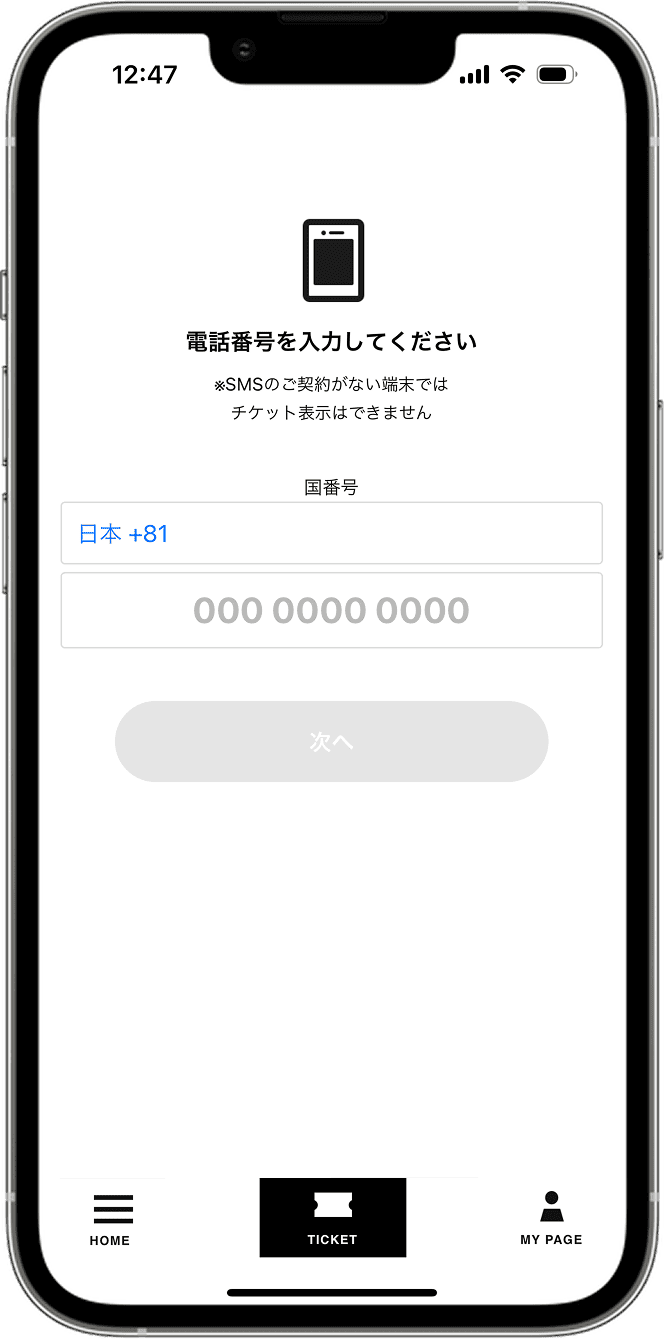
2. Verify your phone number.

Please enter your smartphone's phone number to complete the verification process.

*Please be sure to verify using your own phone number. If you verify using a family member's or friend's phone number, you will not be able to receive your ticket.
>Click here if you are unable to complete SMS verification.
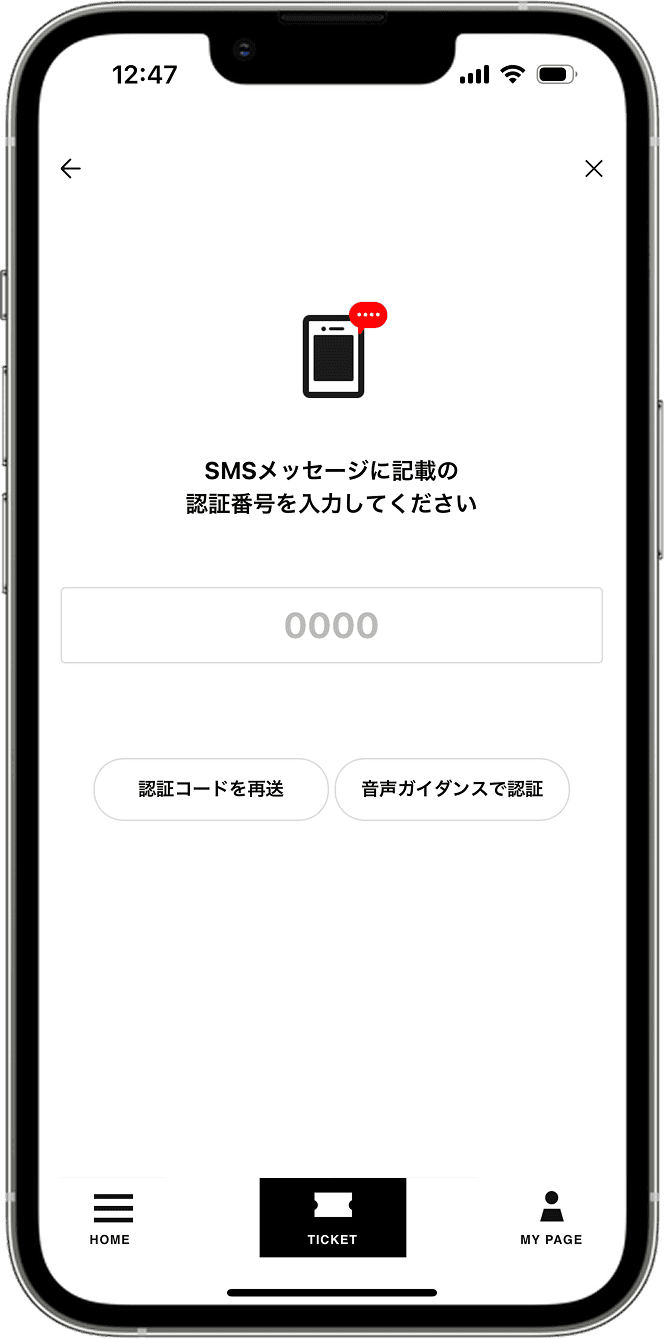
3. Enter the verification code received via SMS.

After entering your phone number, a verification code will be sent to you via SMS message. Please enter the verification code you received.

*If you do not receive the verification code after some time, please request a resend of the verification code. If you still do not receive the verification code, please use the voice guidance to verify.
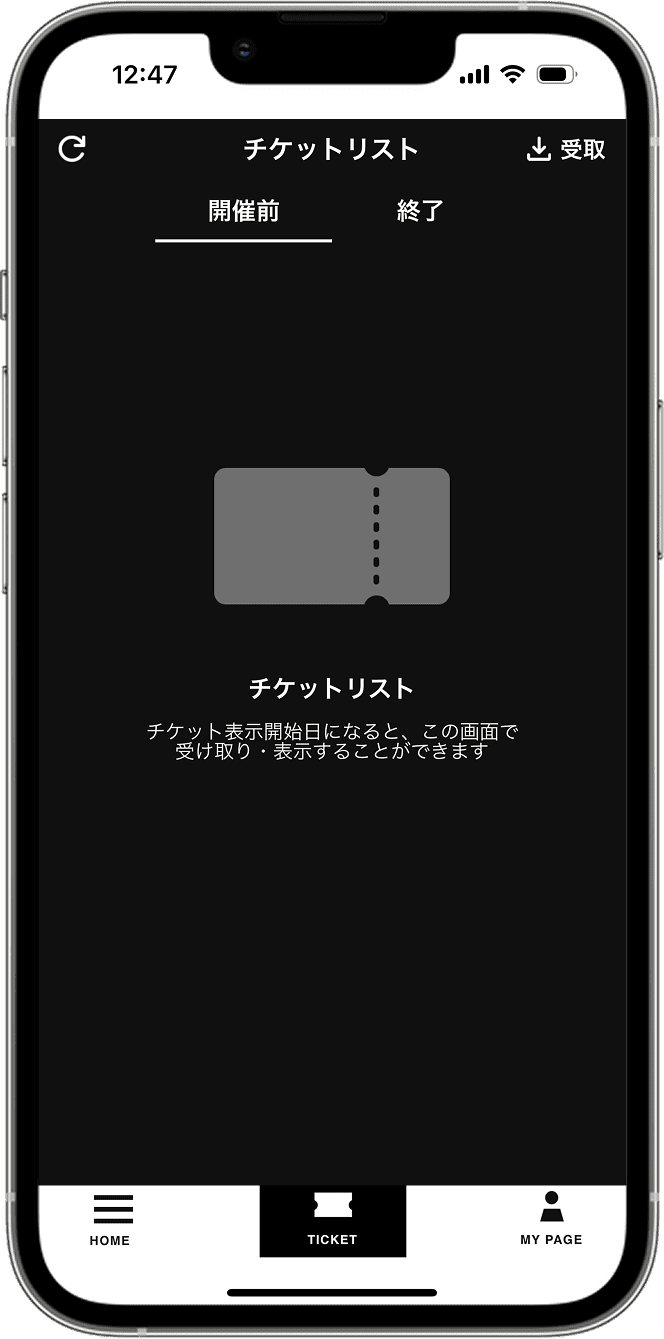
4. Login complete

Once you can see the ticket list screen, the login process is complete. Please proceed to STEP 2.
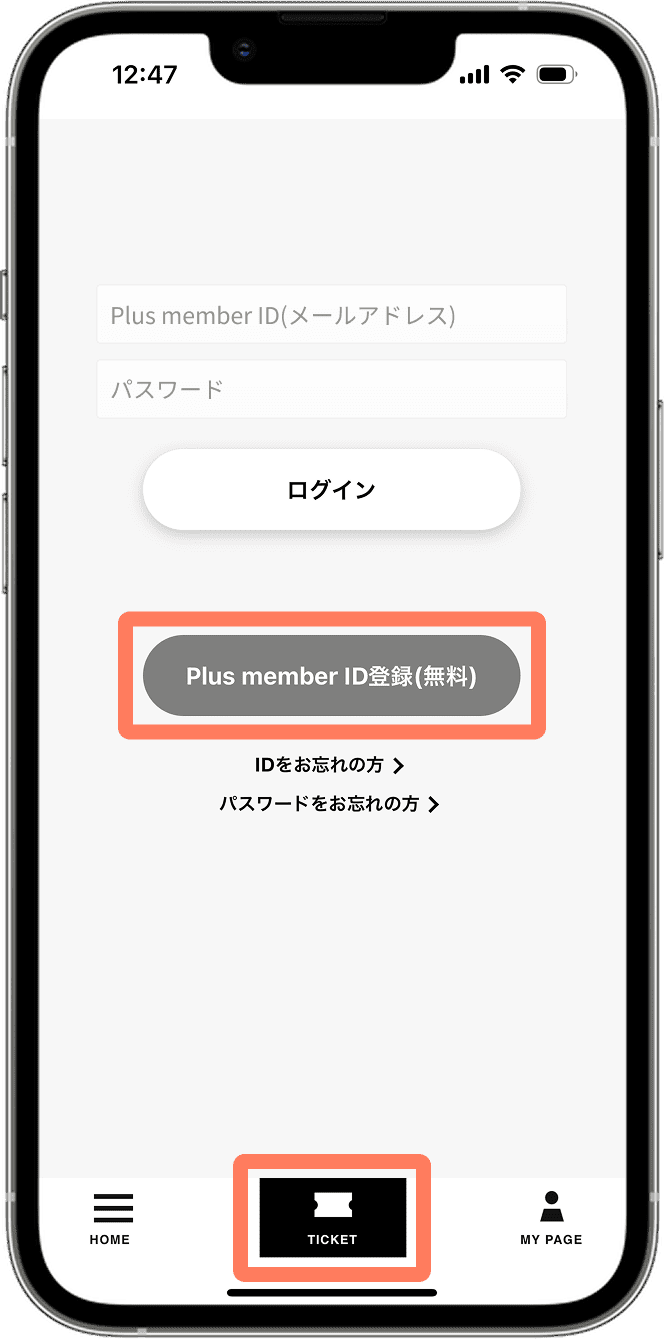
>Click here if you are unable to log in.

戻る
次へ

1. Download the official Mrs. GREEN APPLE app and register as a new member.

Download the official Mrs. GREEN APPLE app and open the ticket menu. Please register as a member from [Plus member ID registration]. (A Plus member ID is required to issue (receive) tickets.)
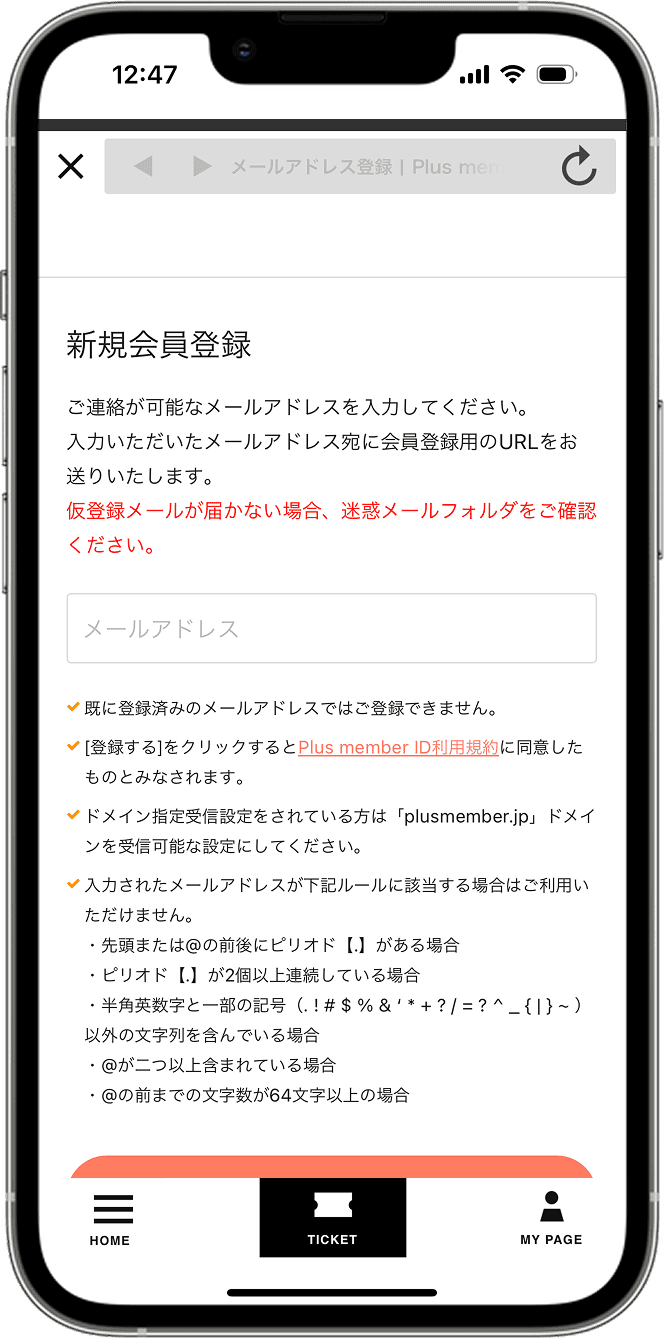
Download the app from the App Store Download the app from Google Play (link)

2. Enter your email address

Please register the email address you will use to create your Plus member ID.
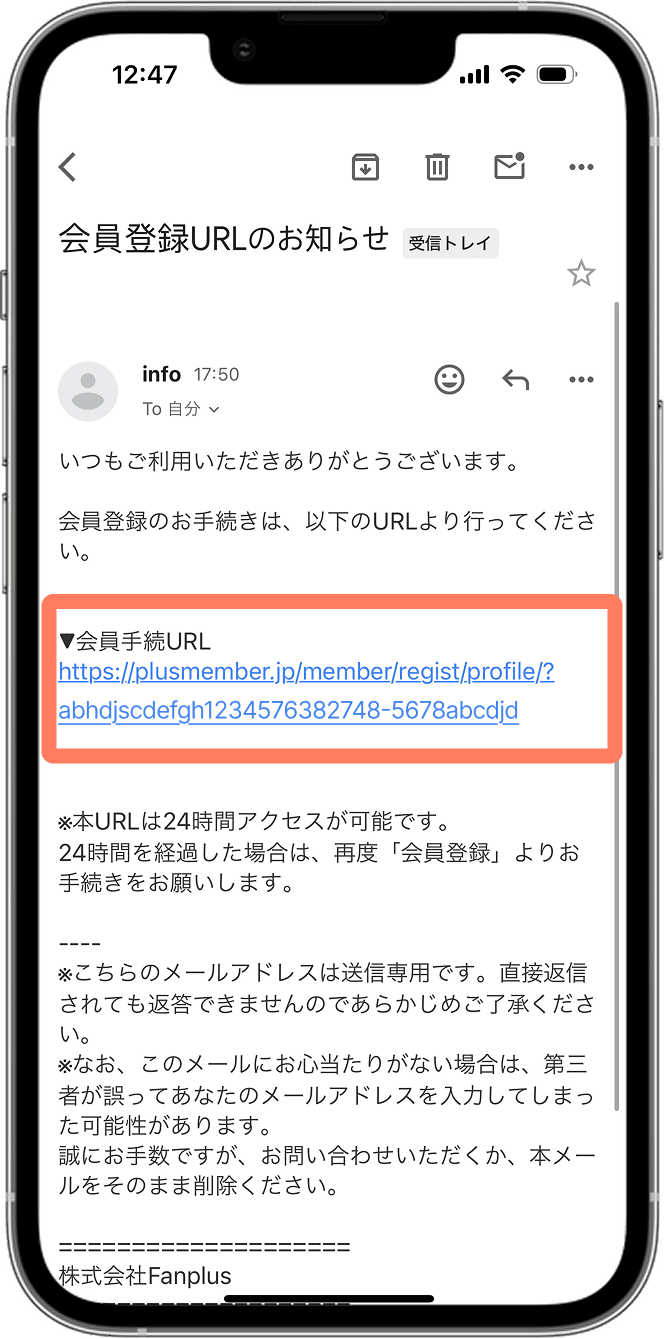
3. Check your email for the URL to register as a member.

A registration URL will be sent to the email address you provided. Please select the URL to proceed with the registration process.
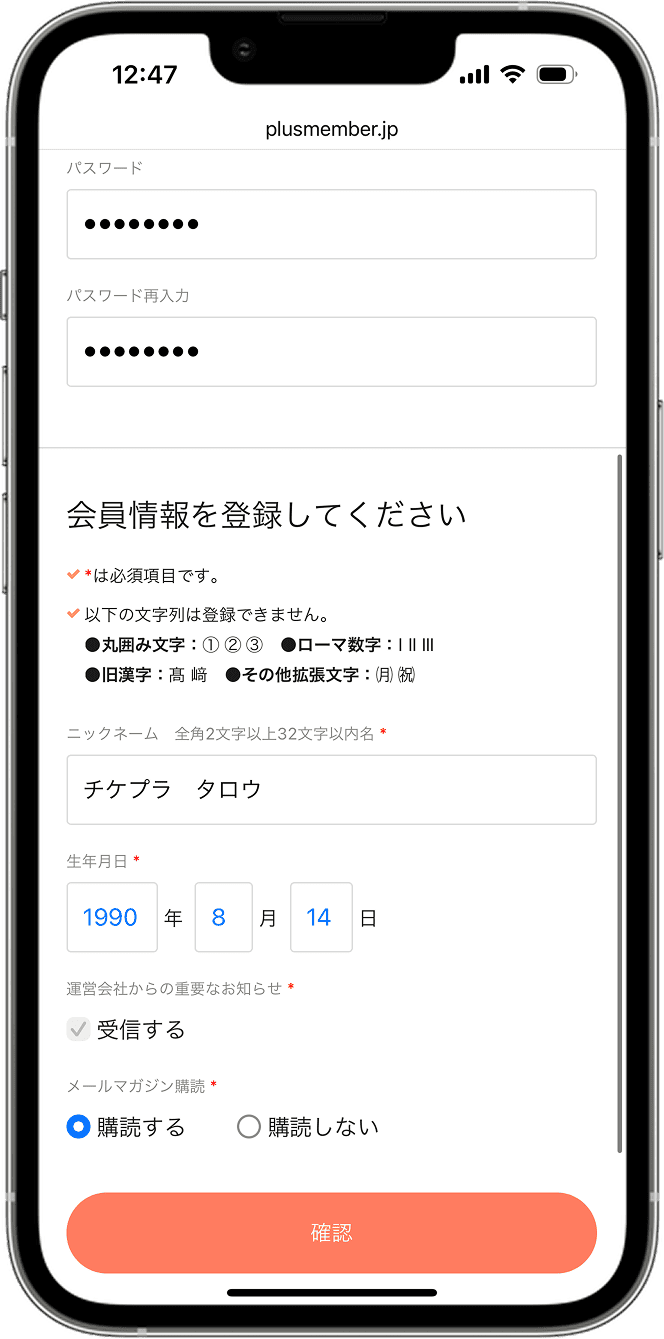
4. Register your password and membership information.

Please register your Plus member ID password and membership information.
Please set your password using a combination of alphanumeric characters between 6 and 12 characters long.
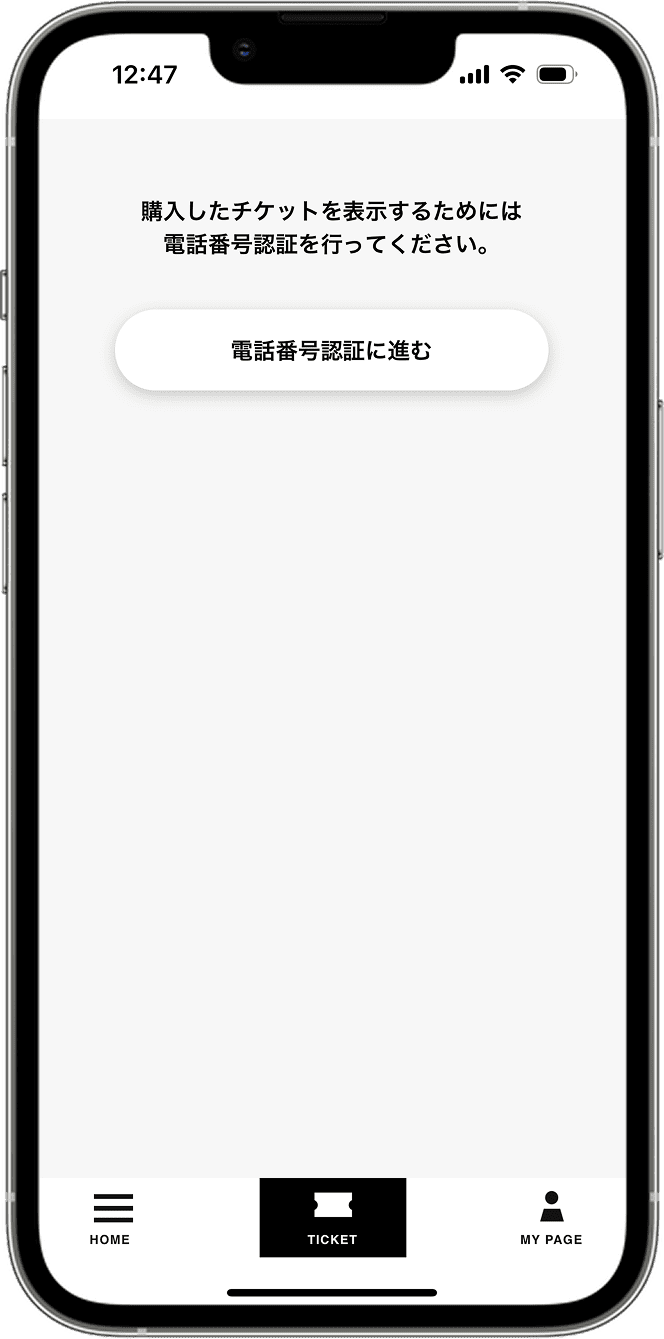
5. Launch the app and proceed to phone number verification.

Please review the information you entered as a member, and once registration is complete, launch the app.
To view your purchased tickets, please proceed with phone number verification.
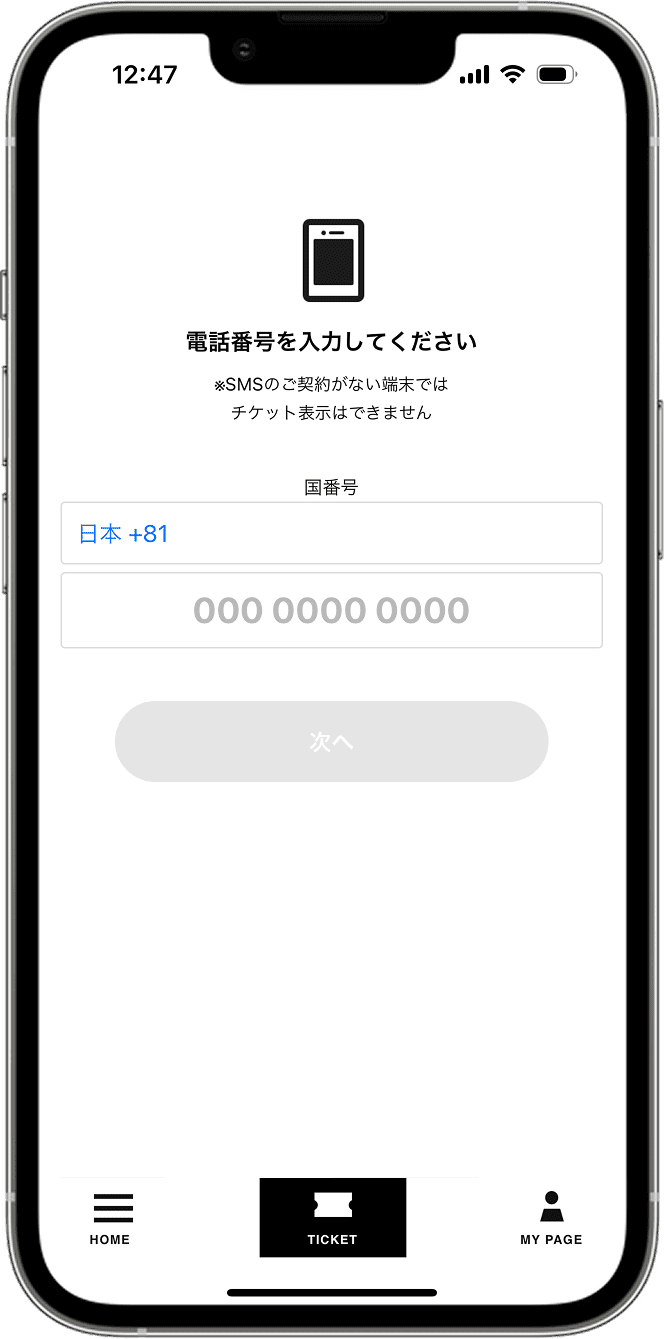
6. Verify your mobile phone number.

Please enter your smartphone's mobile phone number to complete the verification process.

*Please be sure to verify using your own mobile phone number. If you verify using a family member's or friend's mobile phone number, you will not be able to receive your ticket.
>Click here if you are unable to complete SMS verification.
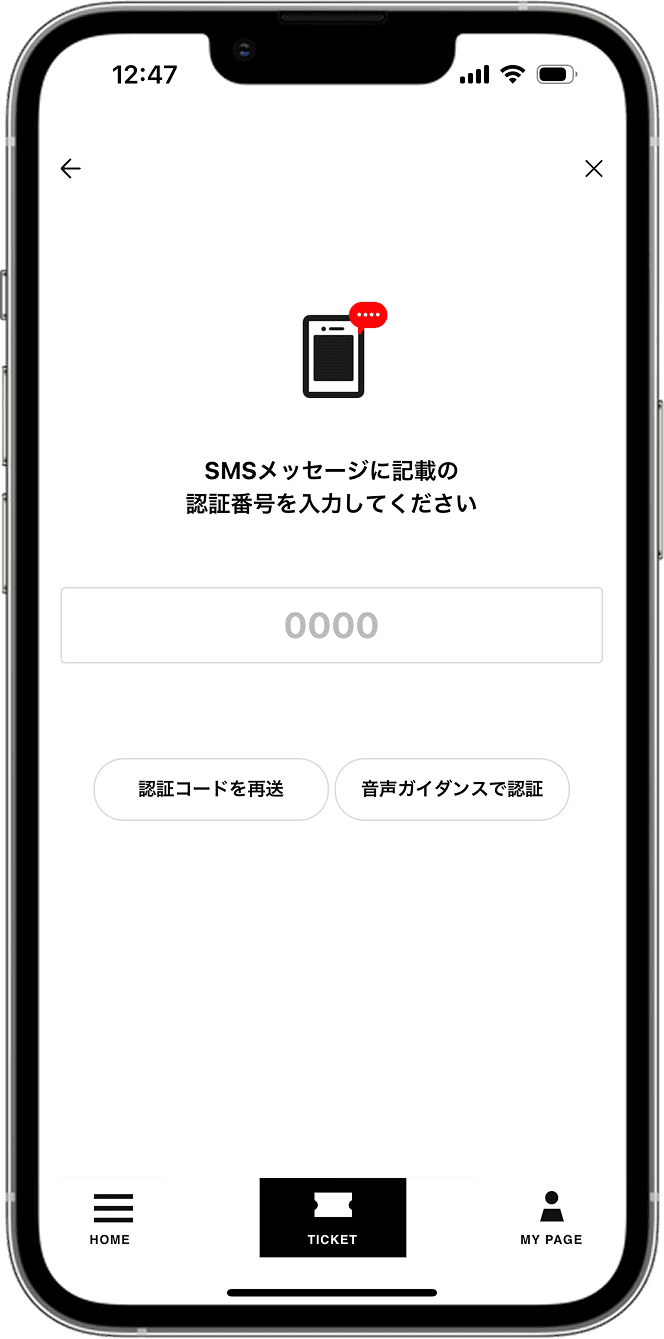
7. Enter the verification code received via SMS.

After entering your phone number, a verification code will be sent to you via SMS message. Please enter the verification code you received.

*If you do not receive the verification code after some time, please request a resend of the verification code. If you still do not receive the verification code, please use the voice guidance to verify.
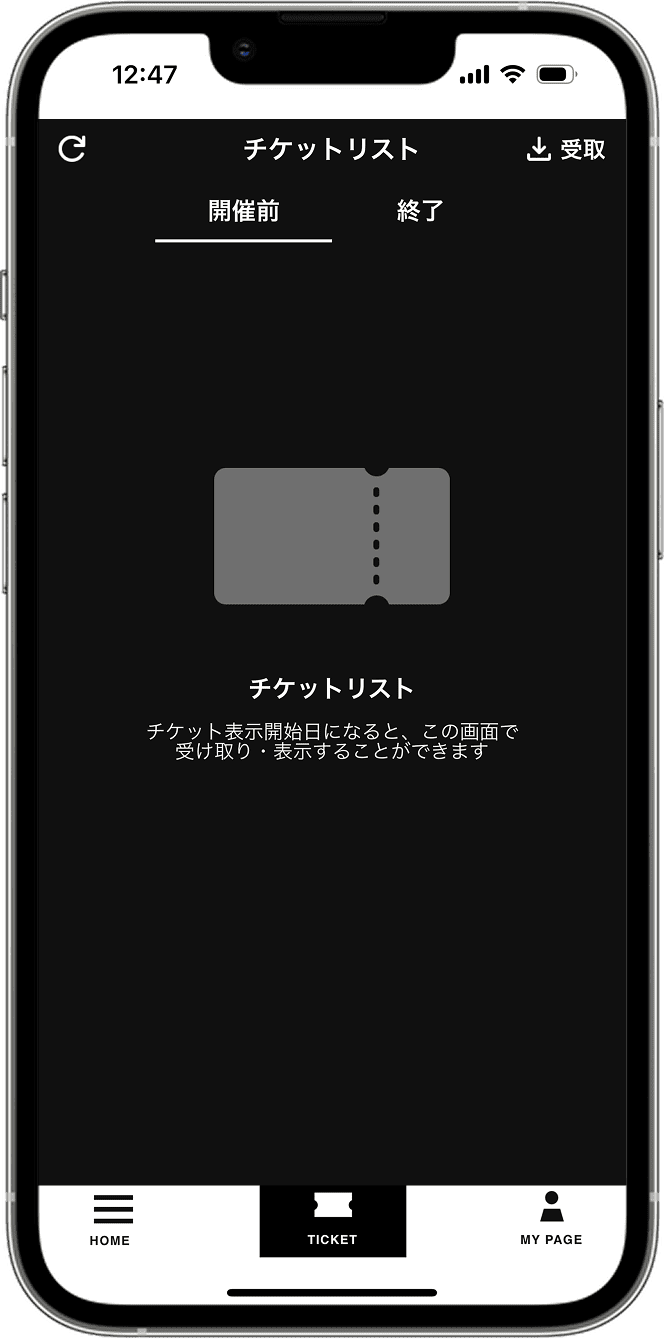
8. Membership registration and login complete.

Once you can see the ticket list screen, the login process is complete. Please proceed to STEP 2.
戻る
次へ

STEP.2

Ticket issuance (collection)

Please check your ticket issuance confirmation email to see if you need a pickup number.

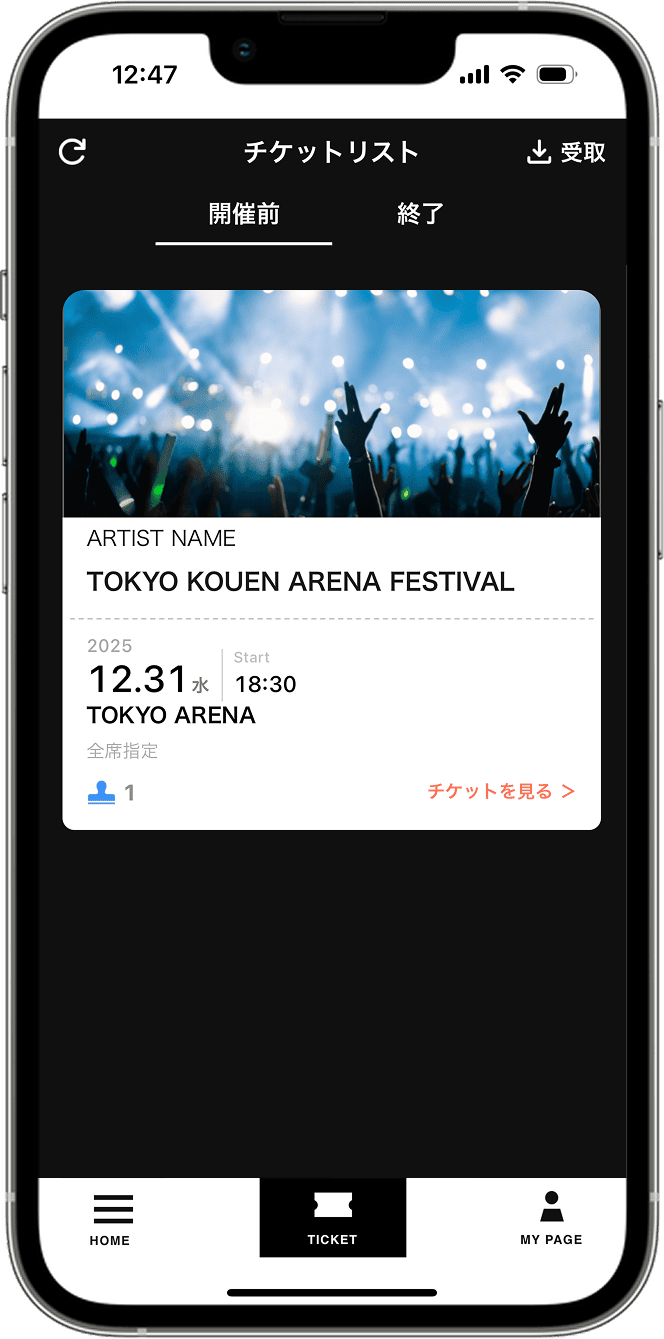
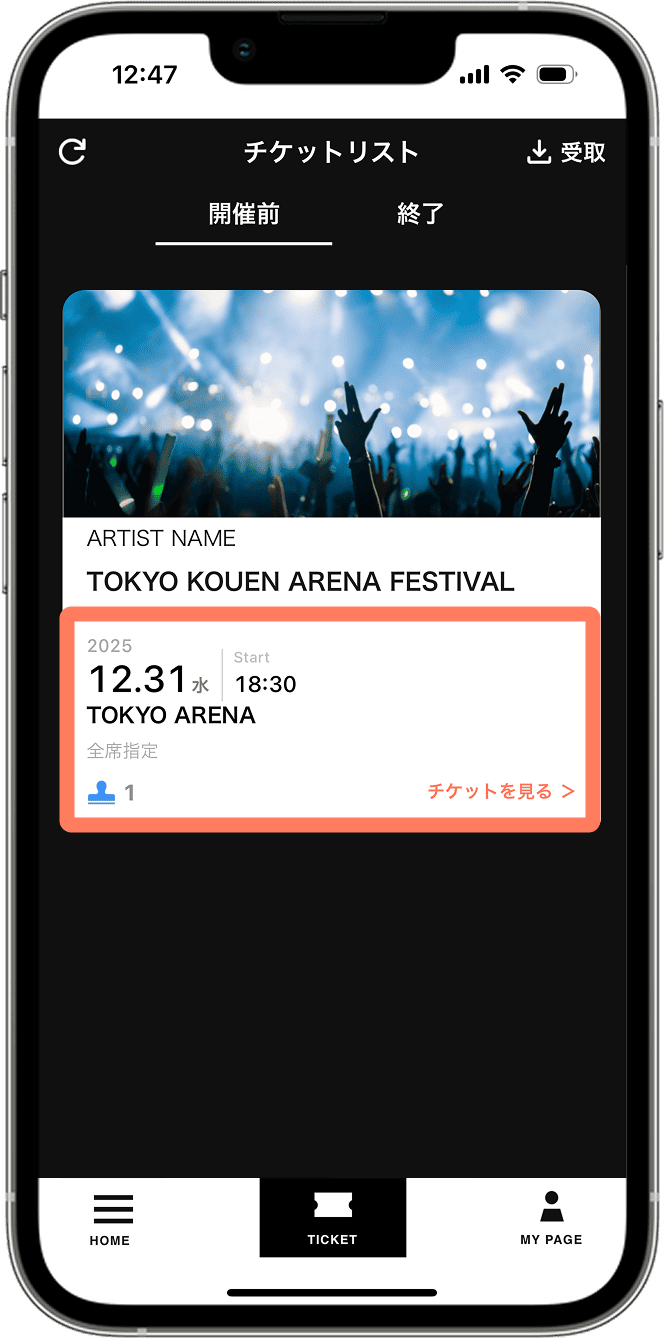
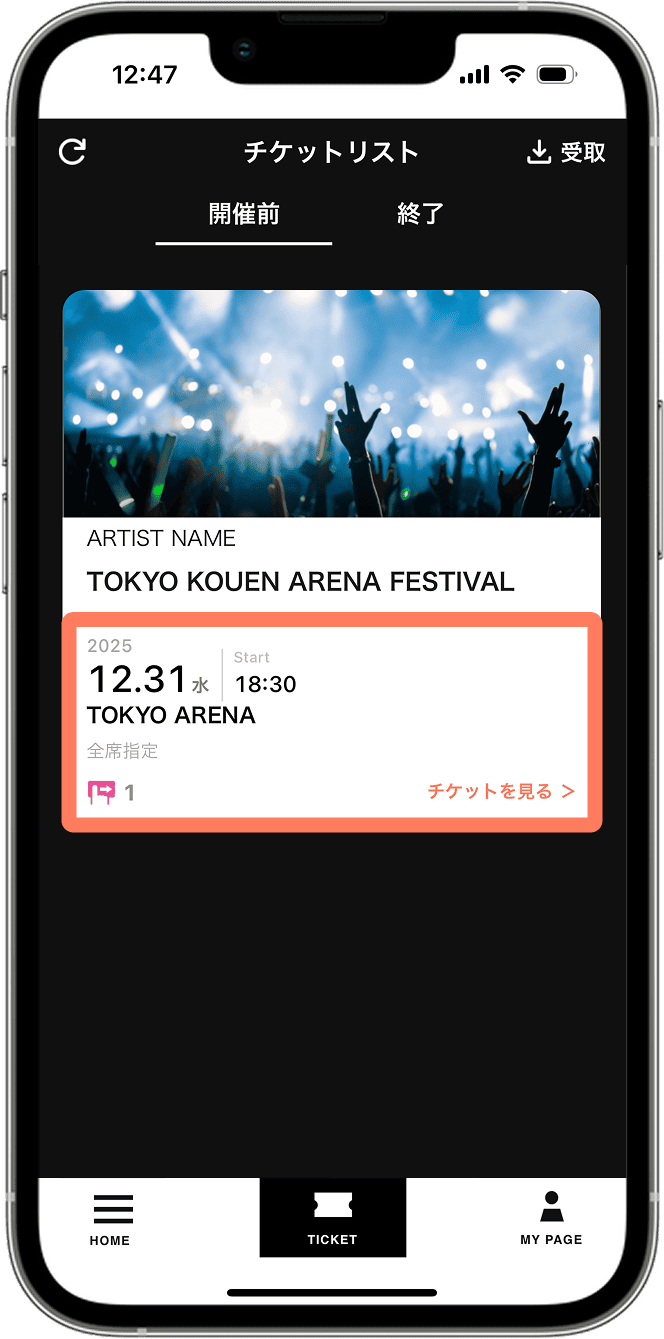
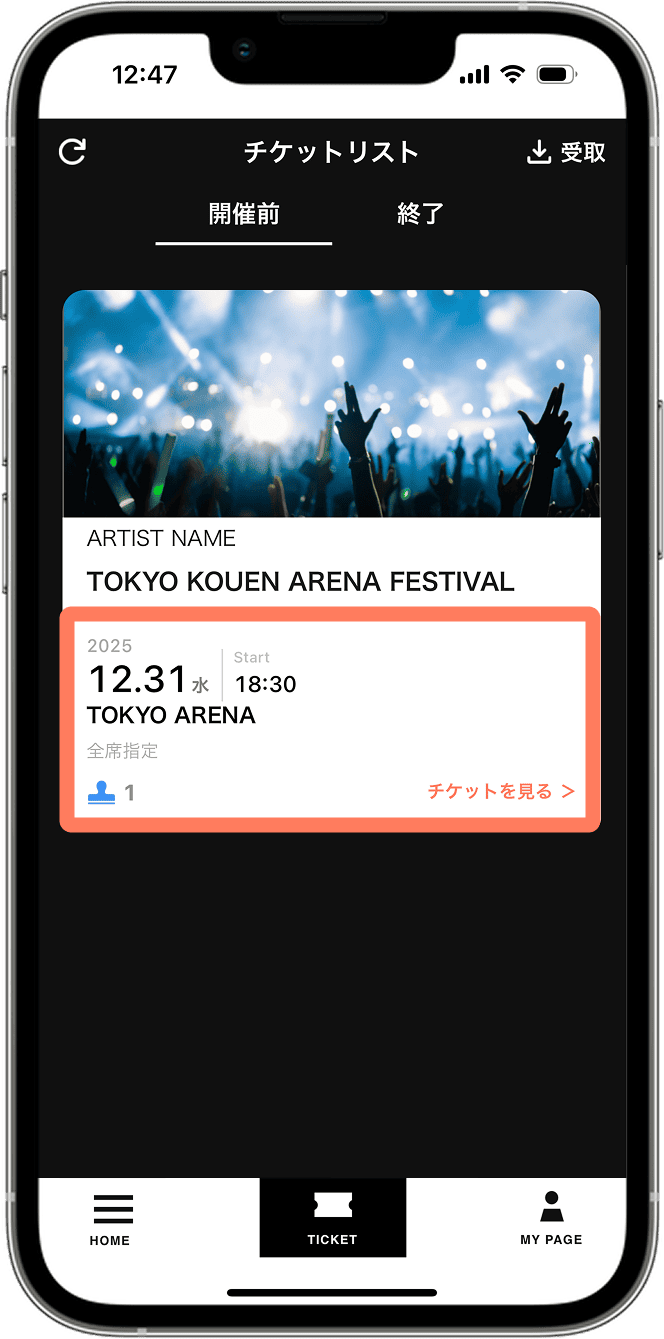
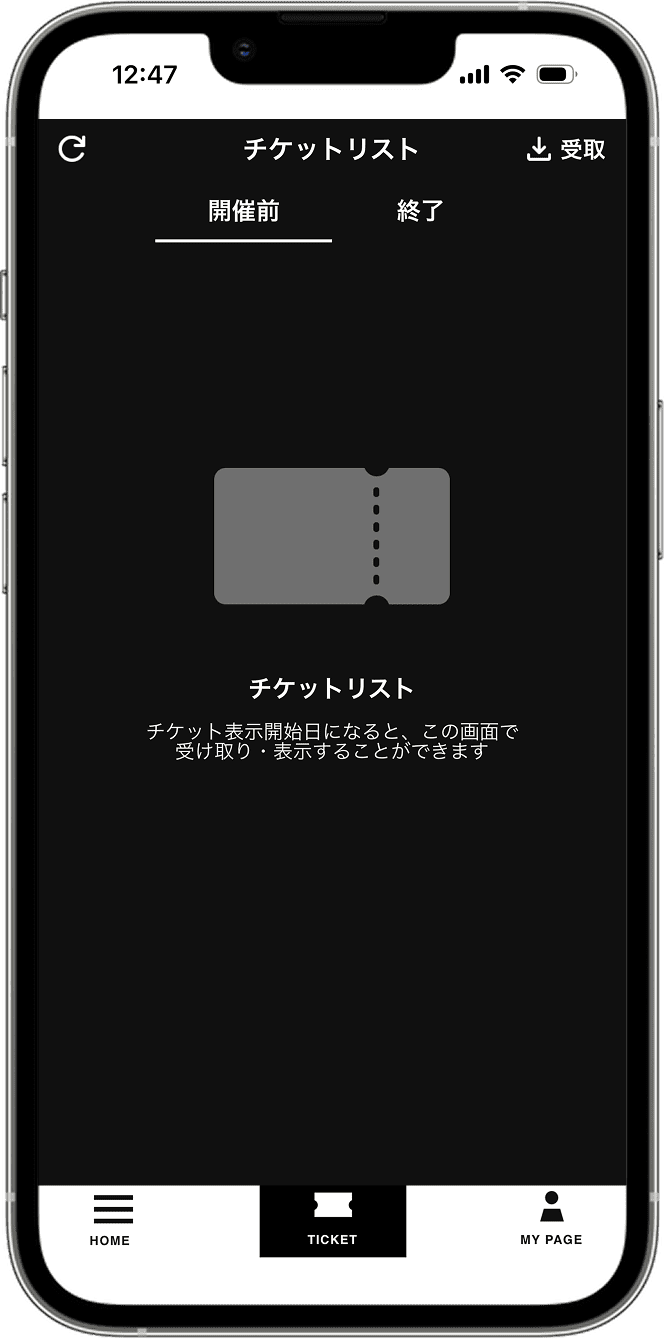
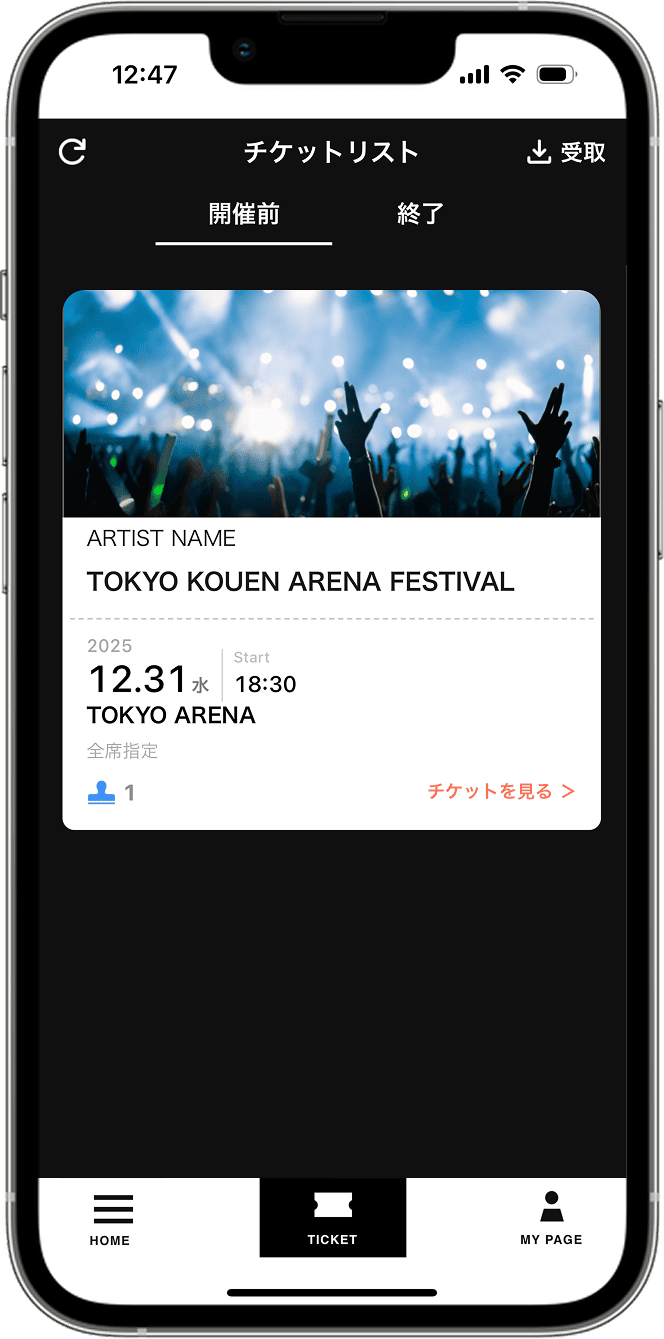
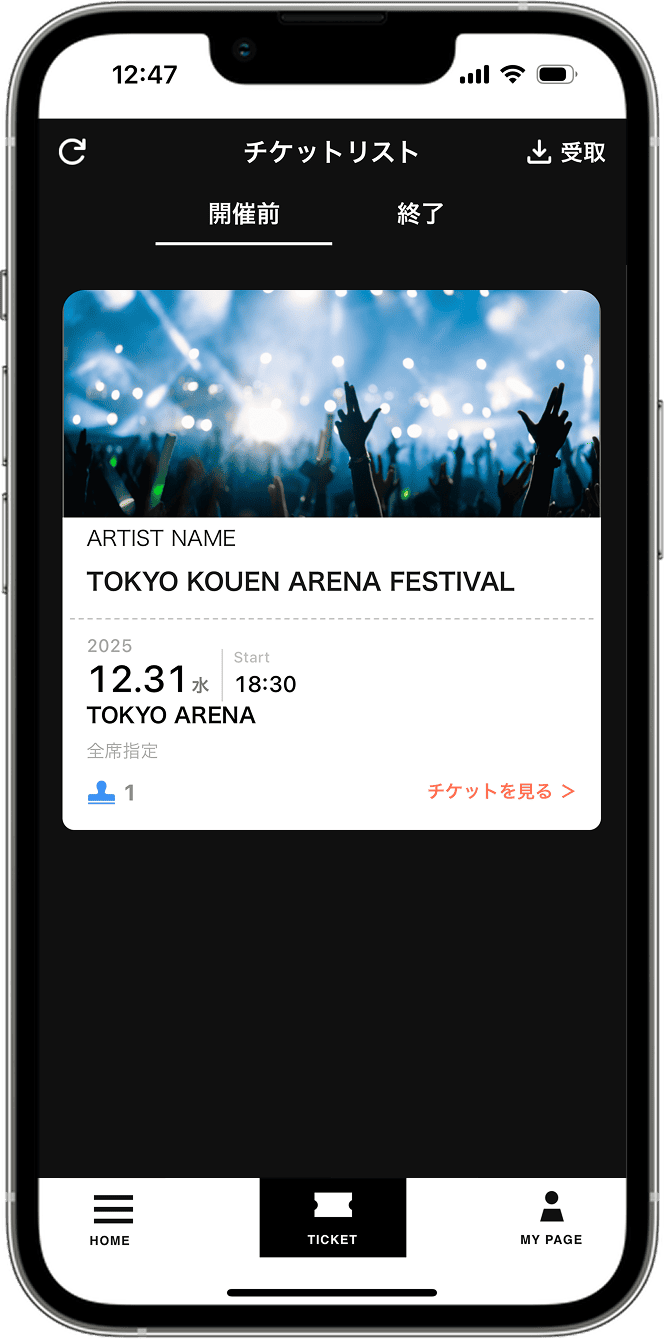
The screen showing the ticket in question in the ticket list.

1. Issue your ticket. If the target ticket (like the one in the image above) is displayed, the ticket issuance is complete.

The ticket in question will be issued from your ticket list. If the ticket in question is not displayed in your ticket list, please proceed with the ticket issuance process starting from "Next".
If your ticket is already displayed, your ticket has been issued.

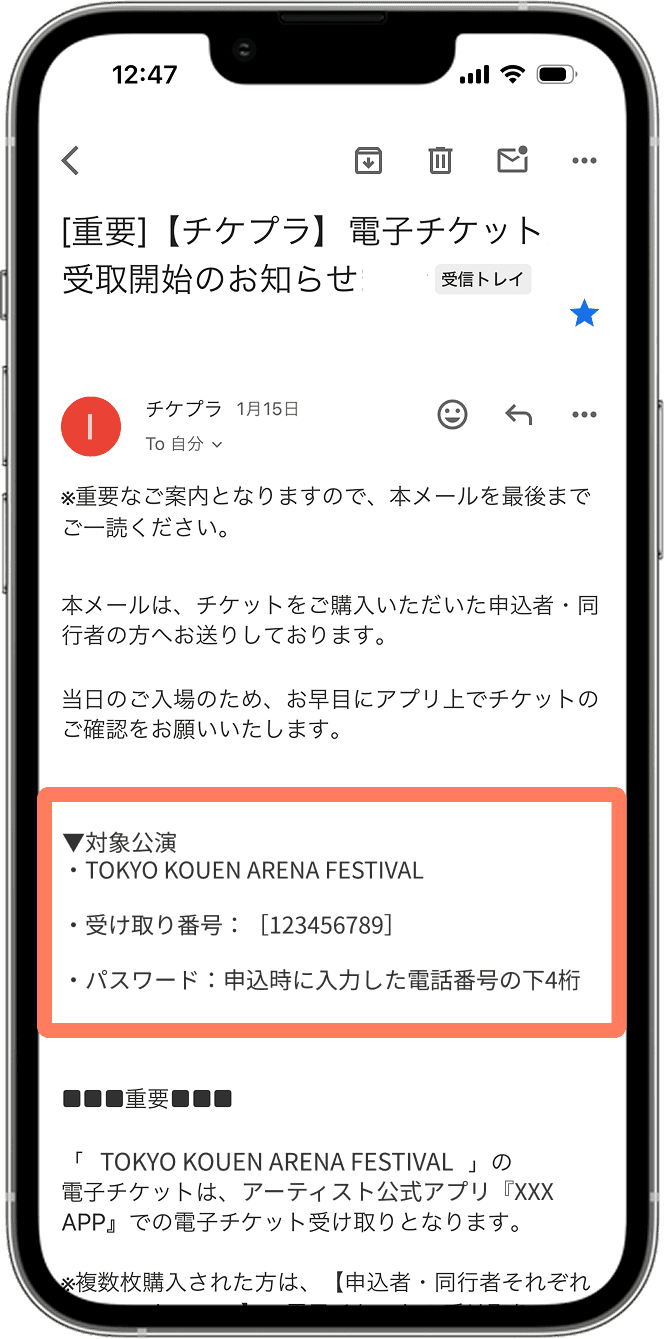
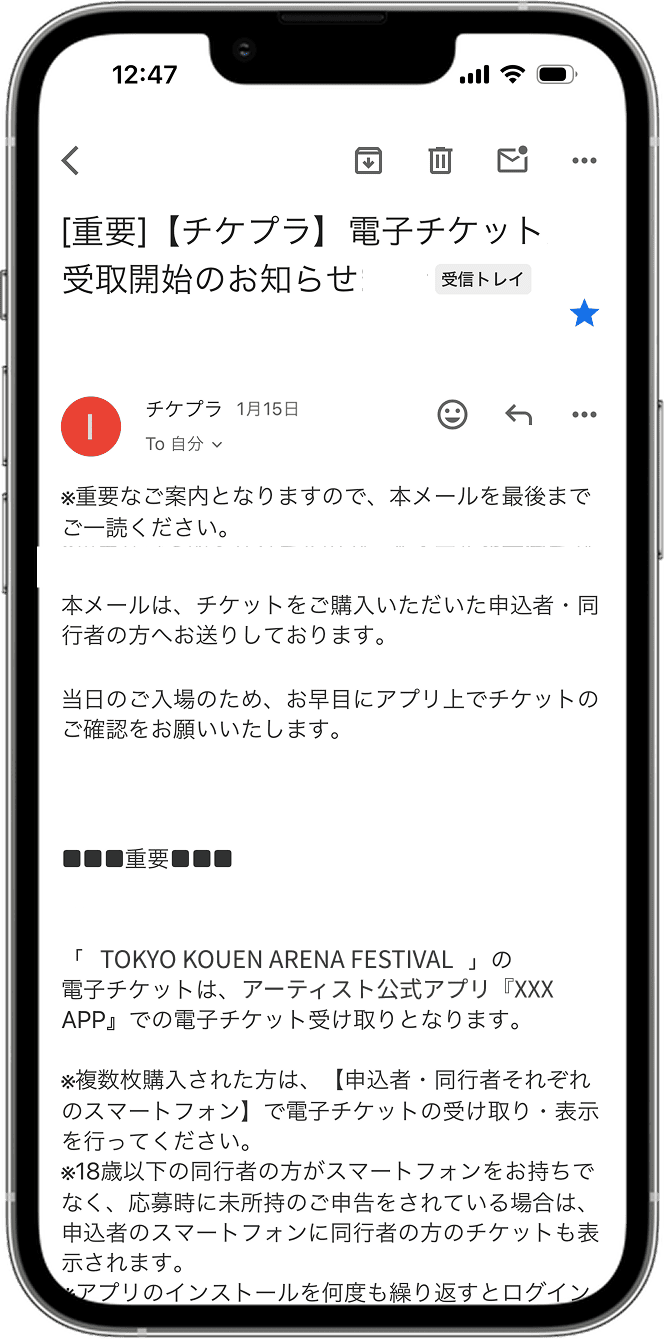
2. Check your ticket issuance confirmation email.

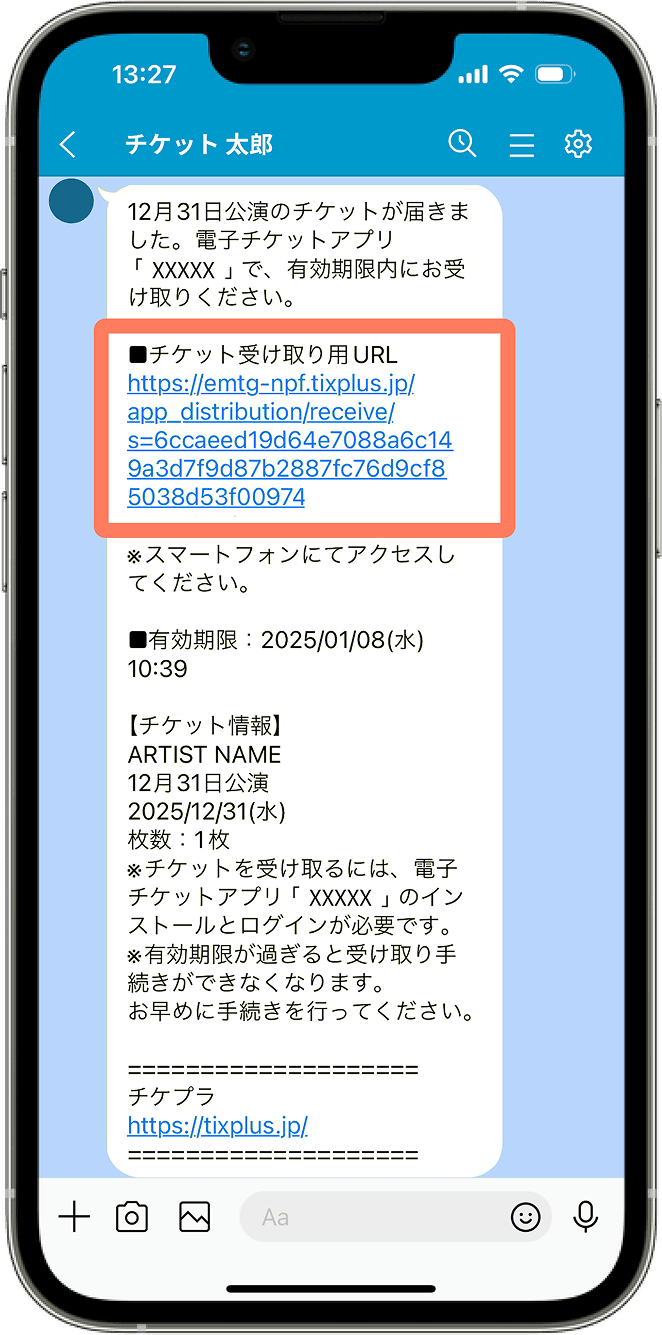
On the ticket issuance date, you will receive an email notification from Ticketpla informing you that ticket issuance has begun. If the email does not contain a "receipt number" or "exchange number," it means that a receipt number is not required for this ticket issuance method.
*This ticketing method applies if you enter your Plus member ID when applying for tickets.

3. Receive your ticket

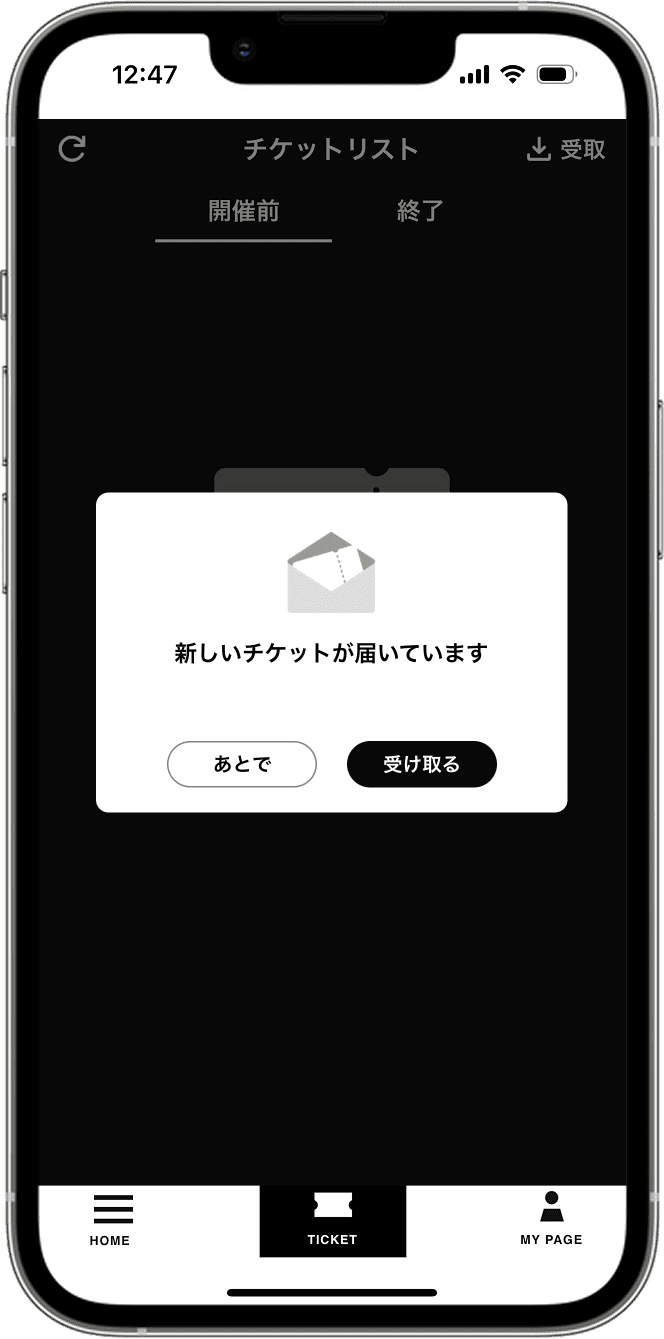
When you select the ticket menu, a pop-up with instructions on how to receive your ticket will automatically appear. Please press the "Receive" button.

*If it does not appear, please press the ticket menu again or swipe the screen from top to bottom to refresh.
If the automatic pickup instructions are not displayed

4. Electronic ticket issuance complete.

Once the ticket appears in the ticket list, the ticketing process is complete. Please click "View Ticket" to confirm that the ticket is displayed.

戻る
次へ
The screen showing the ticket in question in the ticket list.

1. Issue your ticket. Please proceed with the ticket issuance process so that the target ticket (a ticket like the one in the image above) is displayed.

Please issue the tickets listed in your ticket list. Follow the ticket issuance procedure starting from "Next".

2. Check your ticket issuance confirmation email.

On the ticket issuance date, you will receive an email from Ticketpla notifying you that ticket issuance has begun. If the email contains a "receipt number" or "exchange number," you will need to enter that number when issuing your ticket.

3. Tap the [Receive] button.

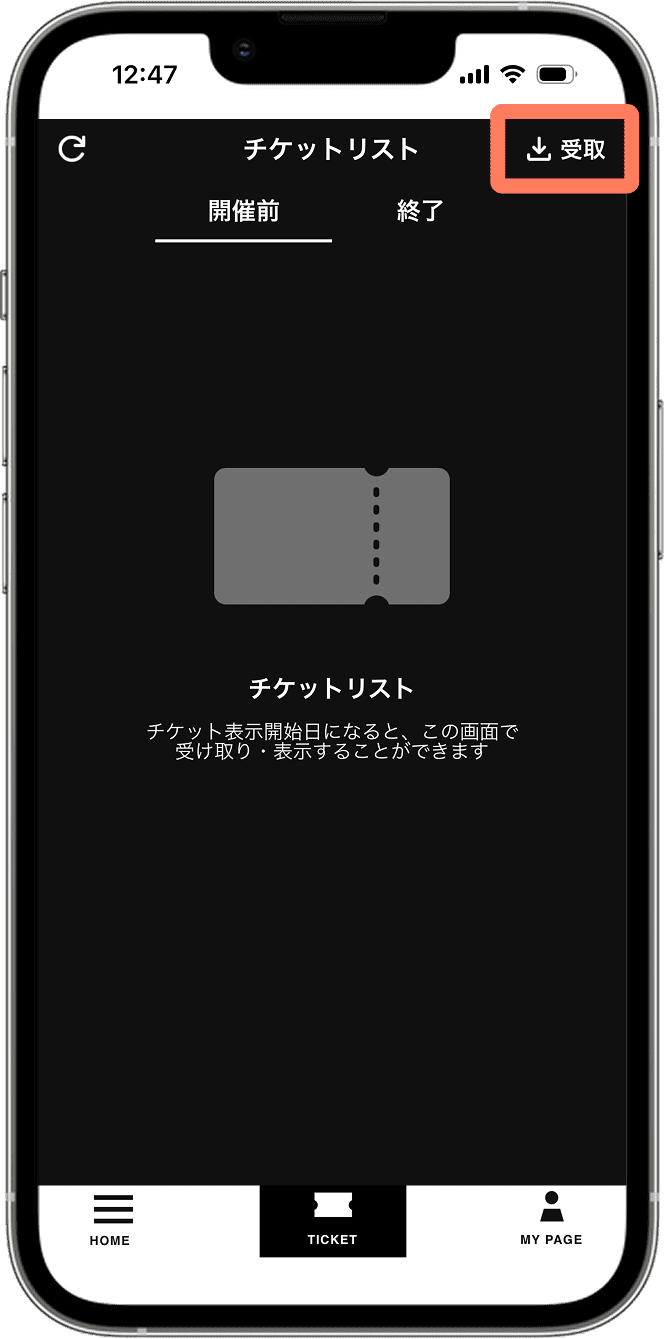
Select the ticket menu and then receive your ticket by clicking the "Receive" button in the upper right corner of the screen.

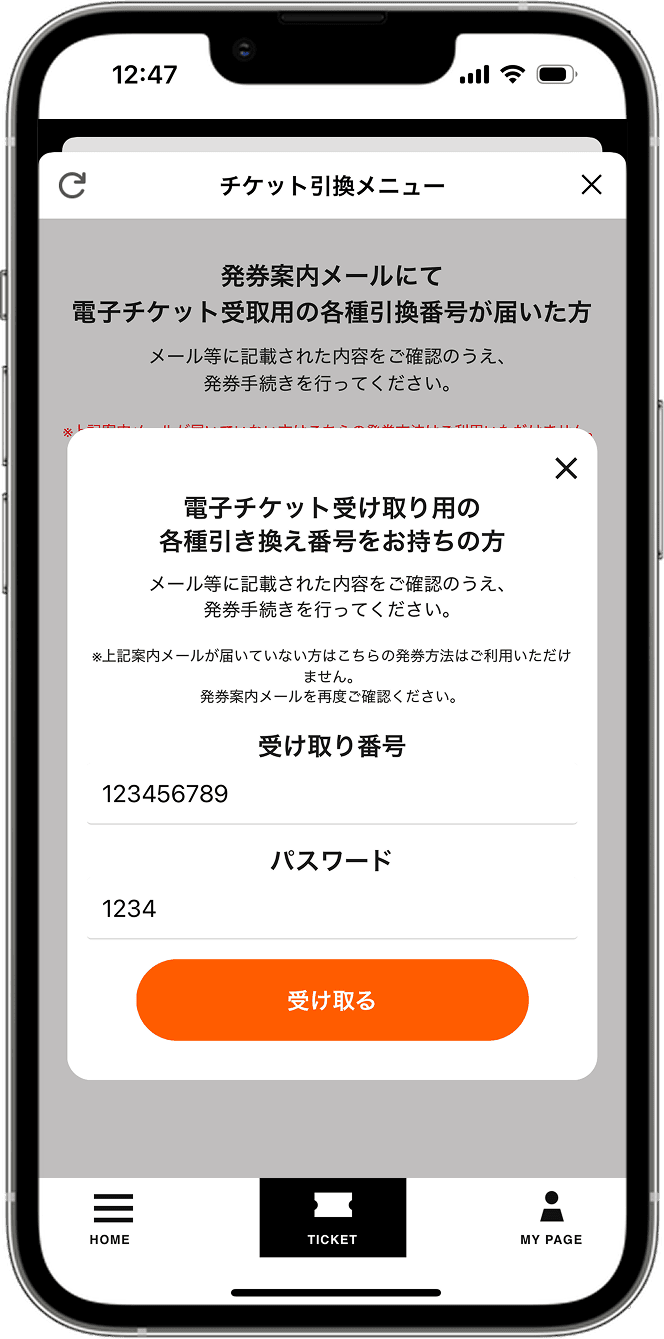
4. Enter the various numbers for receiving the item.

Please enter the "receipt number" received via email and the password (such as the last four digits of your phone number), then press the "receive" button.

>If you see the message "The phone number provided during application does not match"

5. Electronic ticket issuance complete.

Once the ticket appears in the ticket list, the ticketing process is complete. Please click "View Ticket" to confirm that the ticket is displayed.

戻る
次へ

On the day of the performance

Admission on the day of the performance

The ticket tearing method varies depending on the performance.

Screenshot of Step 1

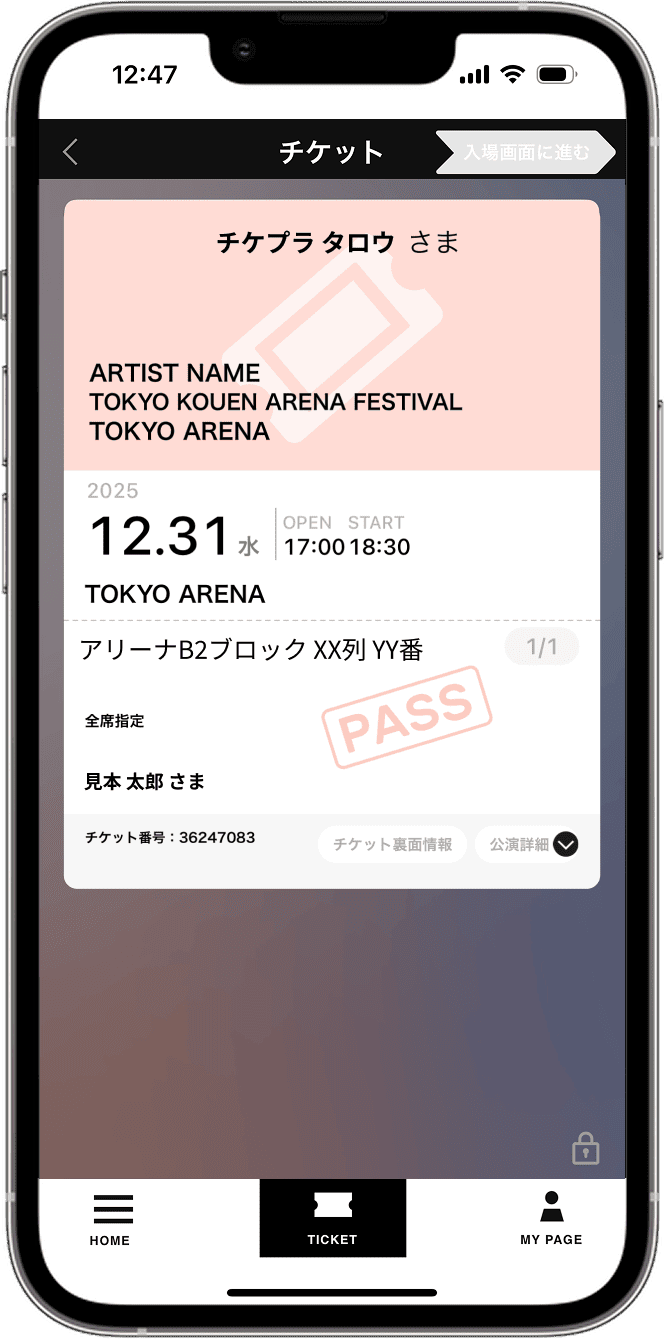
1. Launch the app and display the ticket.

On the day of the performance, please present your electronic ticket to the entrance staff. Open the app, go to the ticket menu, and select "View Ticket" for the relevant ticket.

Screenshot of Step 2

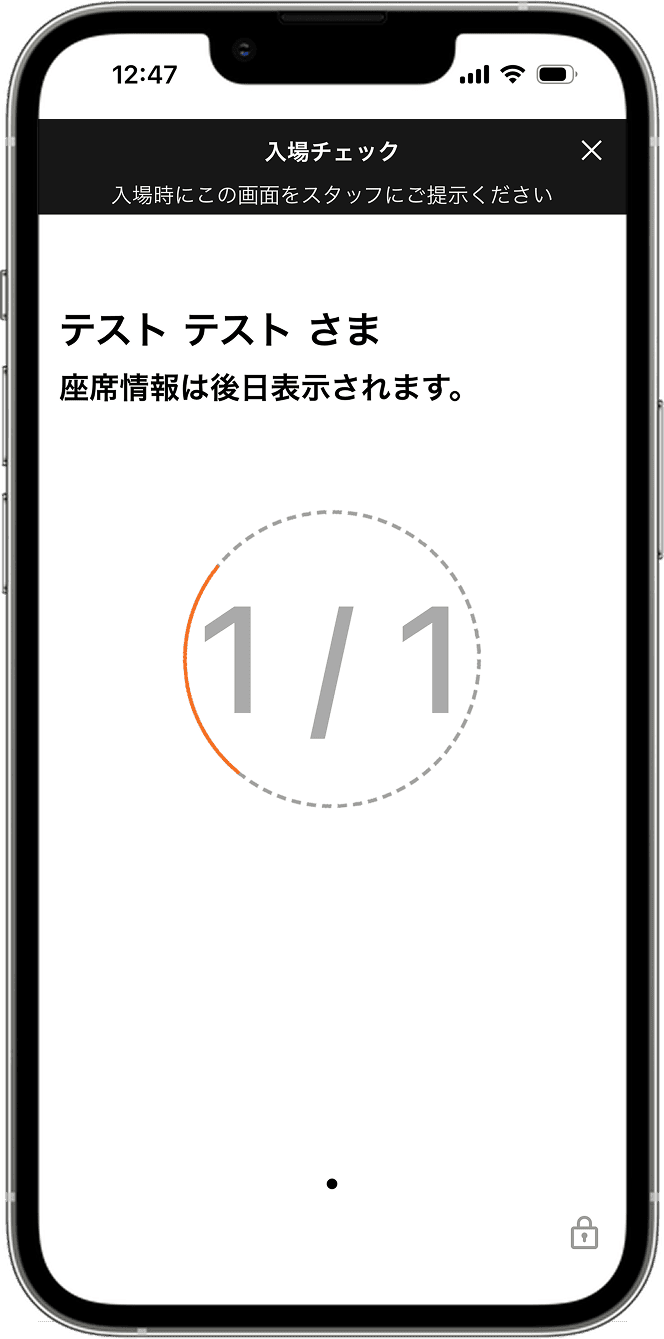
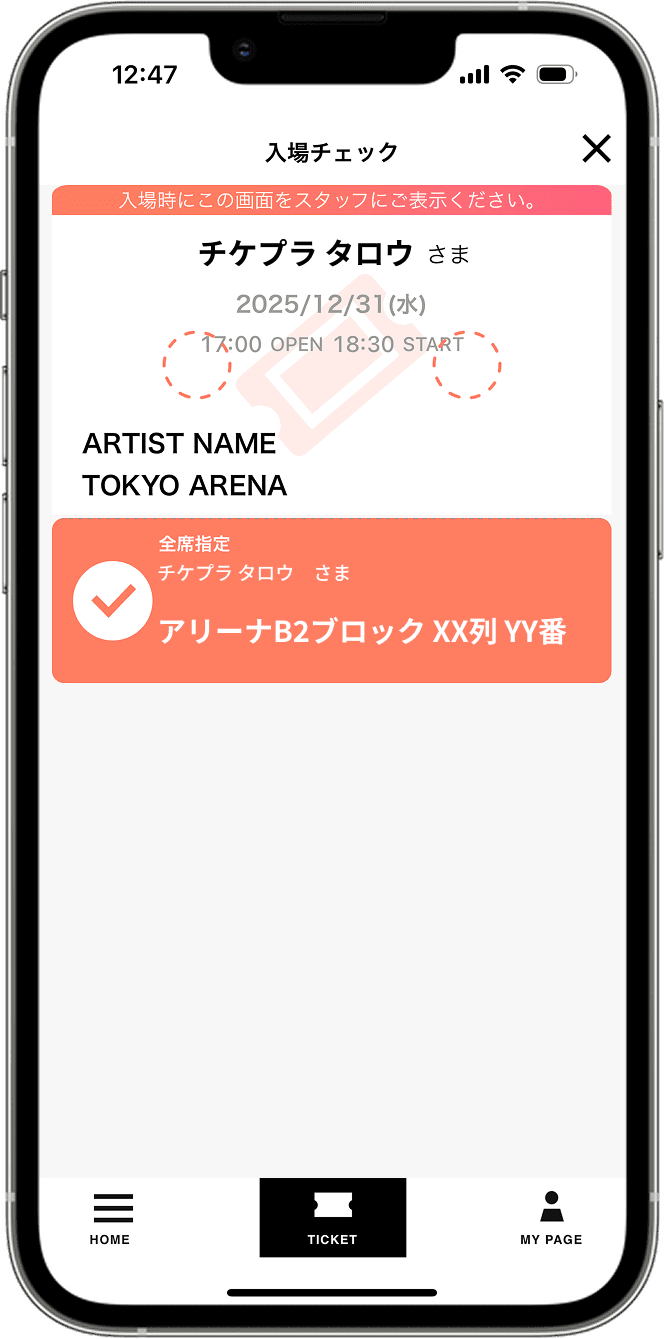
2. Present the entry check screen.

On the day of the performance, an entry check screen will be displayed. When entering, please be sure to show this screen to the entry staff, not your physical ticket.

Screenshot of step 3

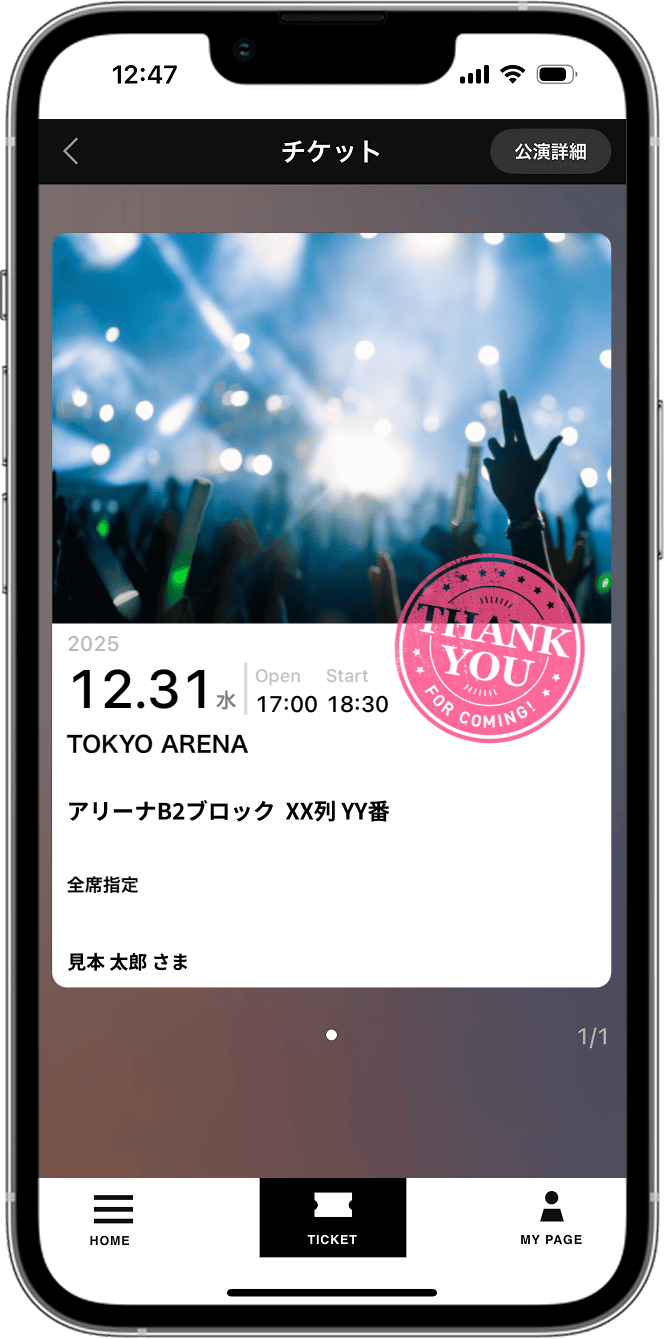
3. Easy entry with a stamp.

Our staff will check your ticket and stamp it. A commemorative stamp will also appear on your electronic ticket as a memento! You can enter smoothly with just your smartphone.

戻る
次へ
Screenshot of Step 1

1. Launch the app and display the ticket.

On the day of the performance, please present your electronic ticket to the entrance staff. Open the app, go to the ticket menu, and select "View Ticket" for the relevant ticket.

Screenshot of Step 2

2. Present the entry check screen.

On the day of the performance, an entry check screen will be displayed. When entering, please be sure to show this screen to the entry staff, not your physical ticket.

Screenshot of step 3

3. Easy entry with a swipe to tear off your ticket.

Follow the instructions of the entrance staff and swipe to tear off your electronic ticket. You can enter smoothly using only your smartphone.

戻る
次へ

For performances that require distribution,
Always in advance
Please complete the distribution process.

An animation showing a ticket being transferred from the applicant's smartphone to the companion's smartphone.

Ticket distribution process

An icon depicting an applicant handing a ticket to a companion.

Applicant

Distribution to accompanying persons

Jump to applicant operation

An icon depicting a companion receiving a ticket from the applicant.

Travel companion

Ticket collection

Jump to companion controls

Applicant's actions

Distribution to accompanying persons

1. Launch the official Mrs. GREEN APPLE app and display your ticket.

Open the official Mrs. GREEN APPLE app, go to the ticket menu, and tap the ticket you want to distribute from My Tickets.

*If you have not yet received your ticket, please do so first.
>Click here for ticket collection instructions.

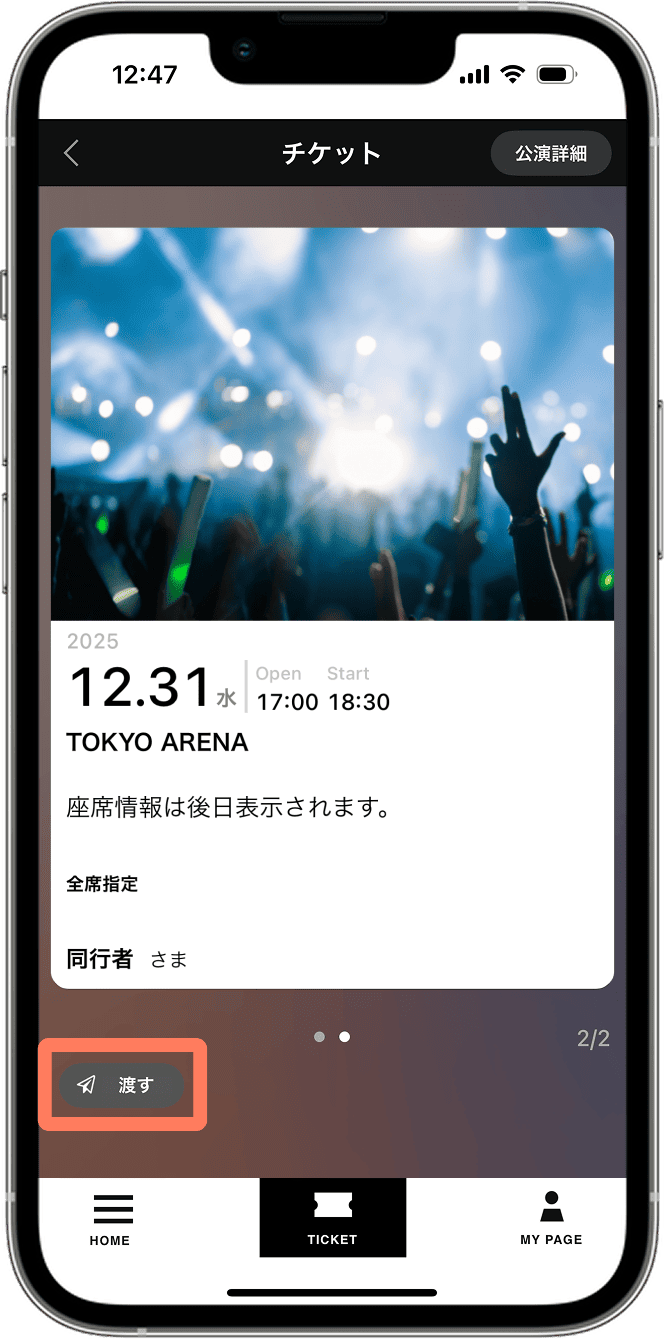
2. Tap [Give]

The ticket screen will appear, so tap the "Give" button in the lower left corner of the screen.

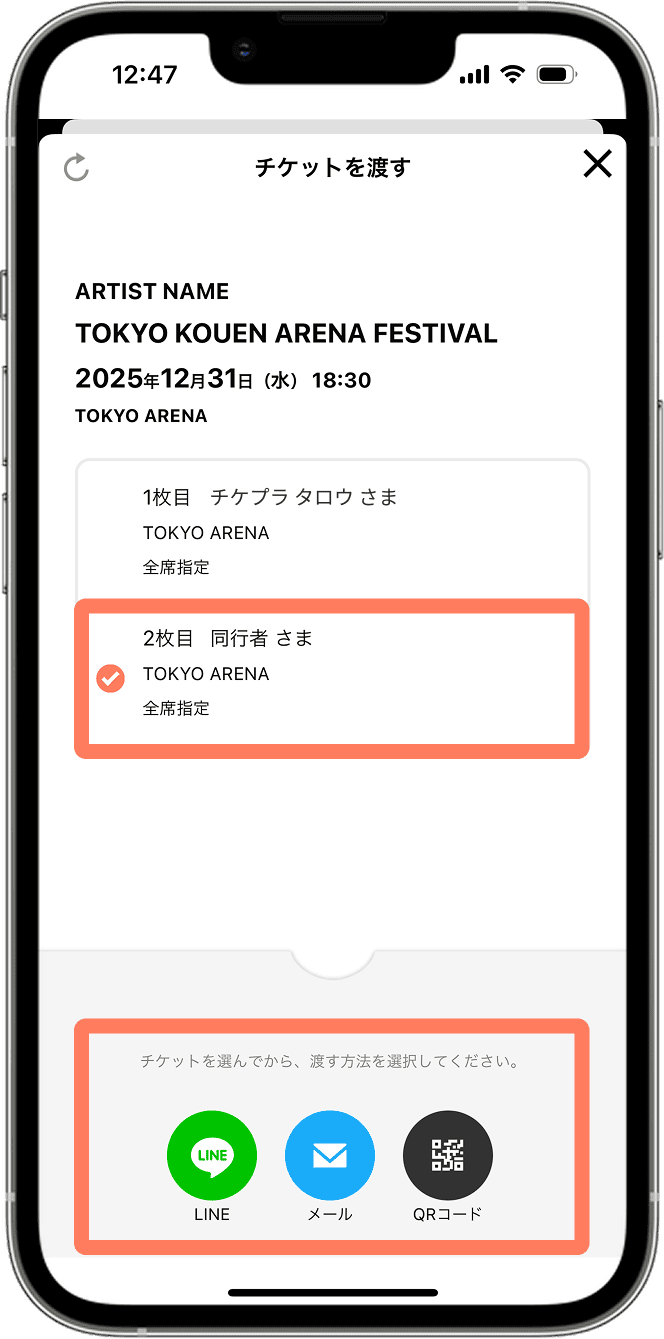
3. Select the tickets to be given and the method of delivery.

If you have multiple tickets, please select the second and subsequent tickets and choose how you would like to receive them from "LINE," "Email," or "QR code."

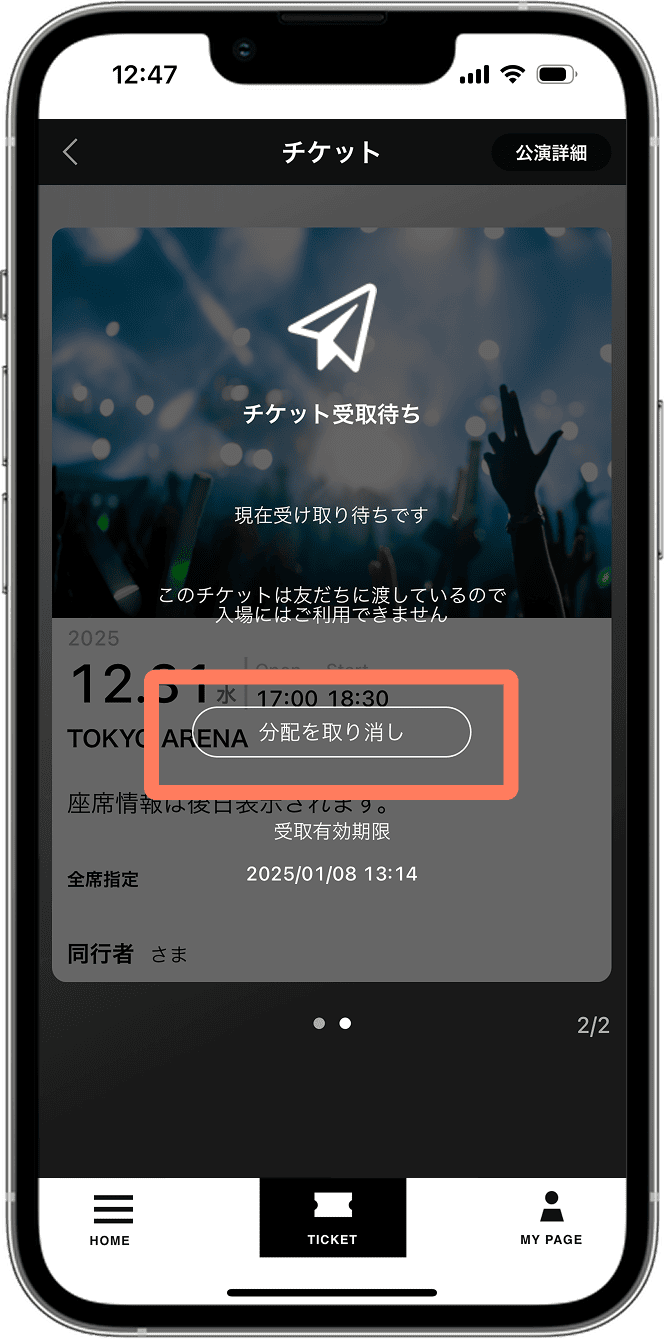
4. Wait for your companion to receive their ticket.

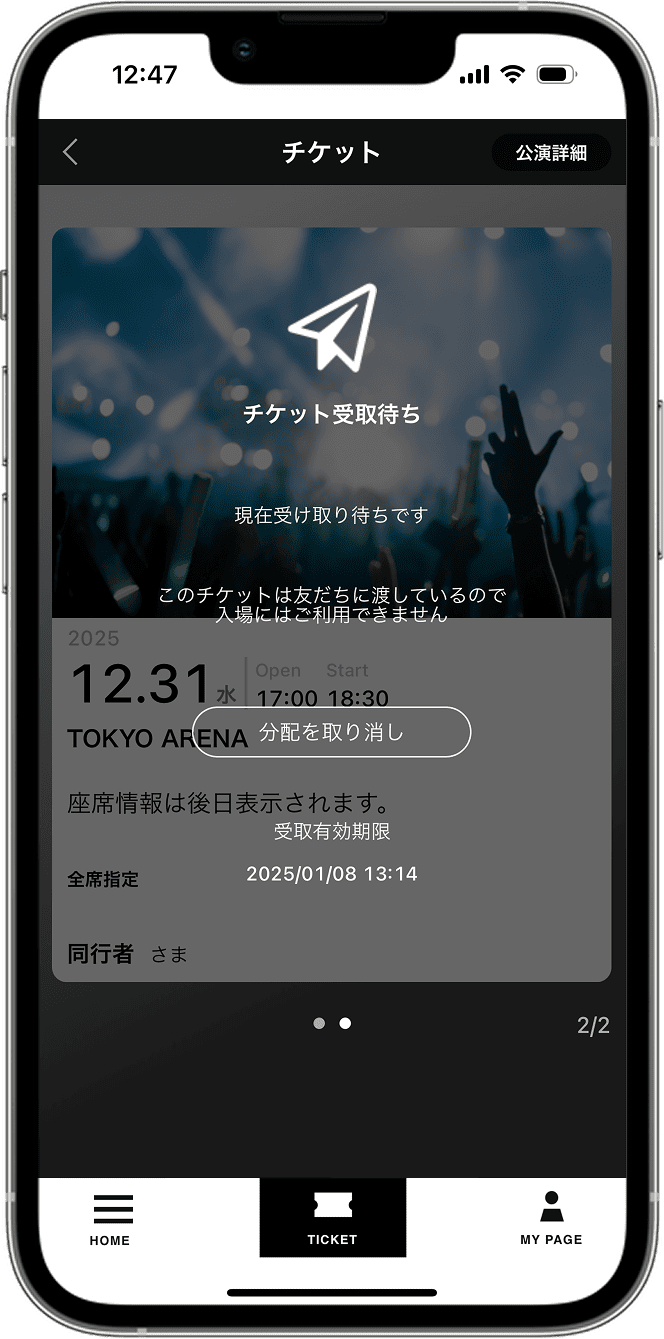
During the ticket handover process, the message "[Waiting for Ticket Collection]" will be displayed on the ticket.

*If you wish to cancel the distribution, please select [Cancel Distribution].

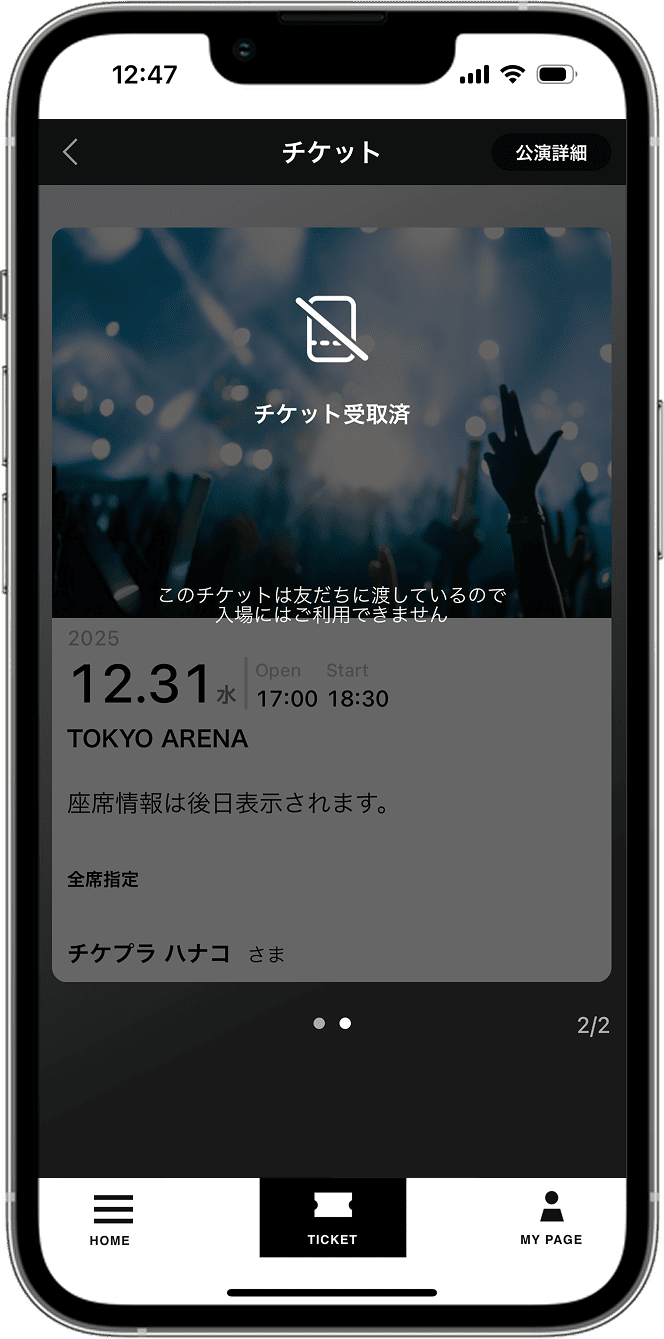
5. Distribution completed

Once your companion receives the ticket, the distribution is complete and the applicant's screen will display "[Ticket Received]".

>Click here for instructions on how to cancel distributions.

戻る
次へ

Operation by the accompanying person

Receiving distributed tickets

1. Download the official Mrs. GREEN APPLE app and log in.

Download the official Mrs. GREEN APPLE app and open the ticket menu. If you have a Plus member ID, please log in.
If you do not have an ID, please register via [Plus member ID registration (free)].

For instructions on how to register as a new member, please refer to STEP 1 of this website's ticket issuance page [For those who do not have a Plus member ID], register, and then review the distributed ticket receiving guide again.

Download the app from the App Store Download the app from Google Play (link)

2. Login complete

Once you have verified your phone number and confirmed that you can view your ticket list screen, you are logged in. Your tickets are now ready to be collected.

3. Access the redemption page.

Please access the ticket redemption page according to the ticket distribution method you selected (LINE, email, or QR code).

4. Tap "Receive Ticket"

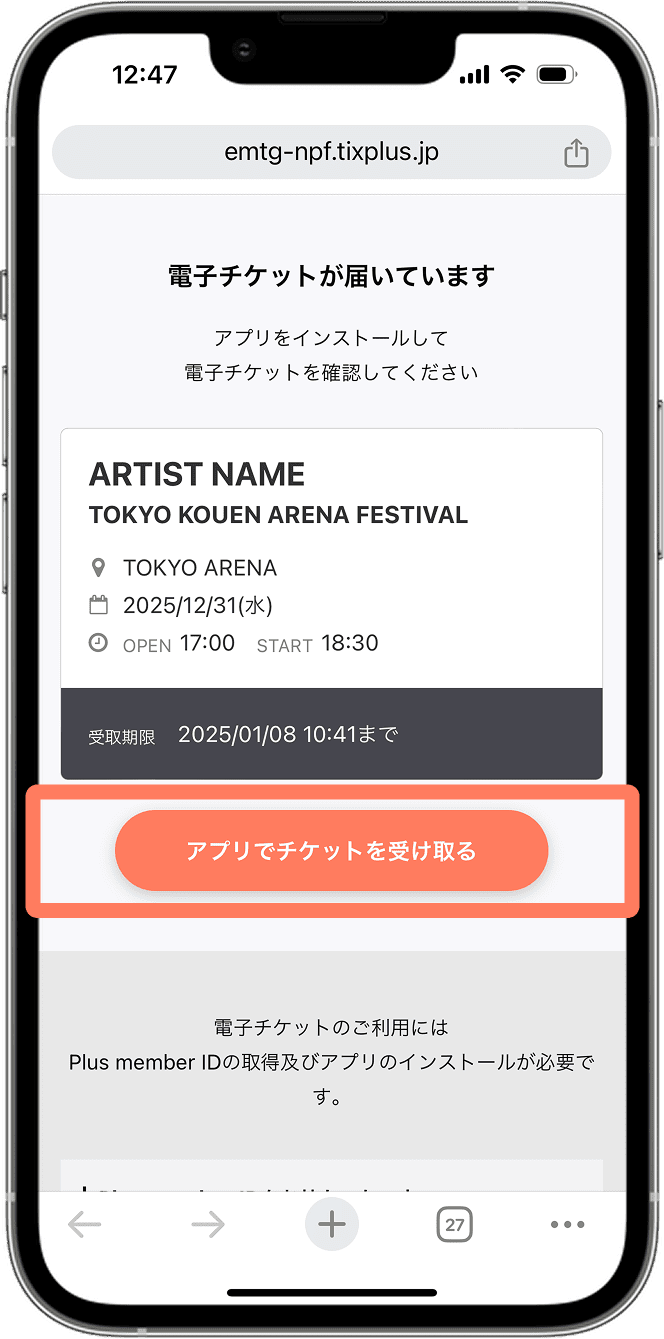
Open the ticket redemption page in a regular browser such as Safari or Google Chrome and select "Receive tickets via app".

5. Electronic ticket received.

Your distributed tickets have been successfully received. Please select the relevant performance from your ticket list and check the information displayed on the ticket.
If the distributed ticket does not appear on your companion's smartphone, please check our FAQ section: [I cannot receive the distributed ticket] .

>Click here for instructions on how to cancel distributions.

戻る
次へ

When you want to cancel the distribution of tickets

Distribution Cancellation / Distribution Return

​Cancellation from the applicant's screen

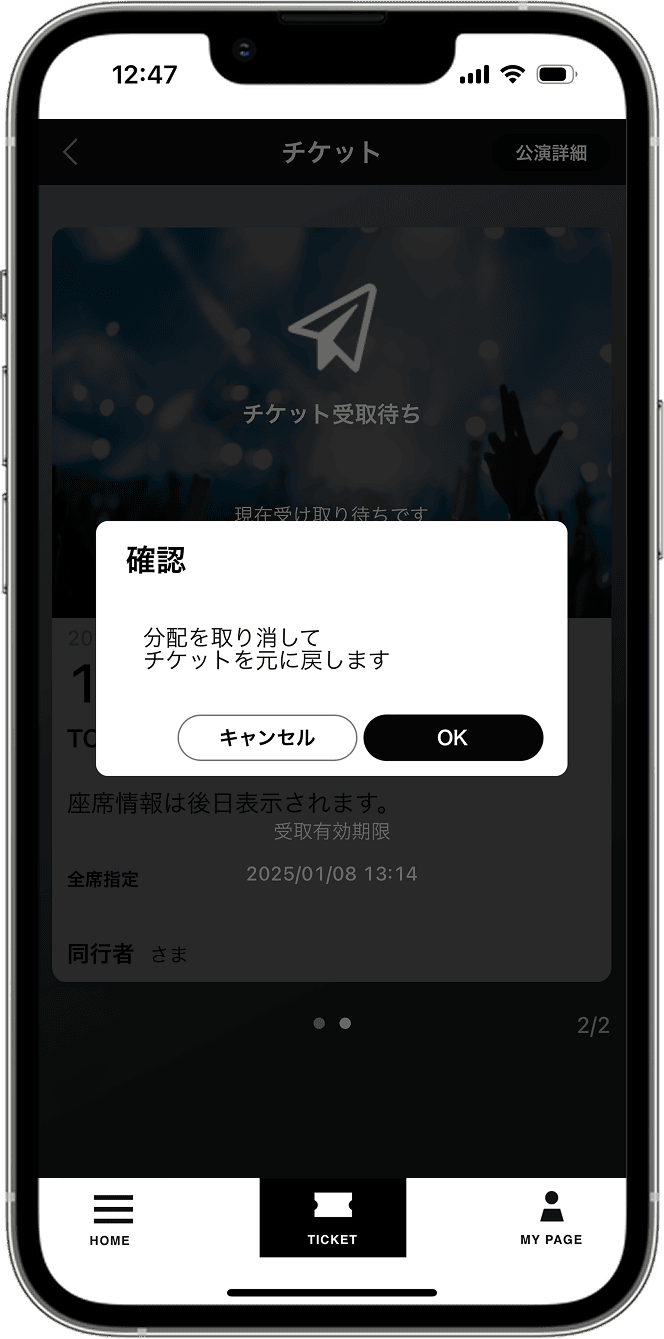
Press the "Cancel Sending" button while waiting for your companion to receive their ticket.

Clicking OK in the pop-up will take you to the ticket list screen. Please confirm that your ticket has been returned.

戻る
次へ

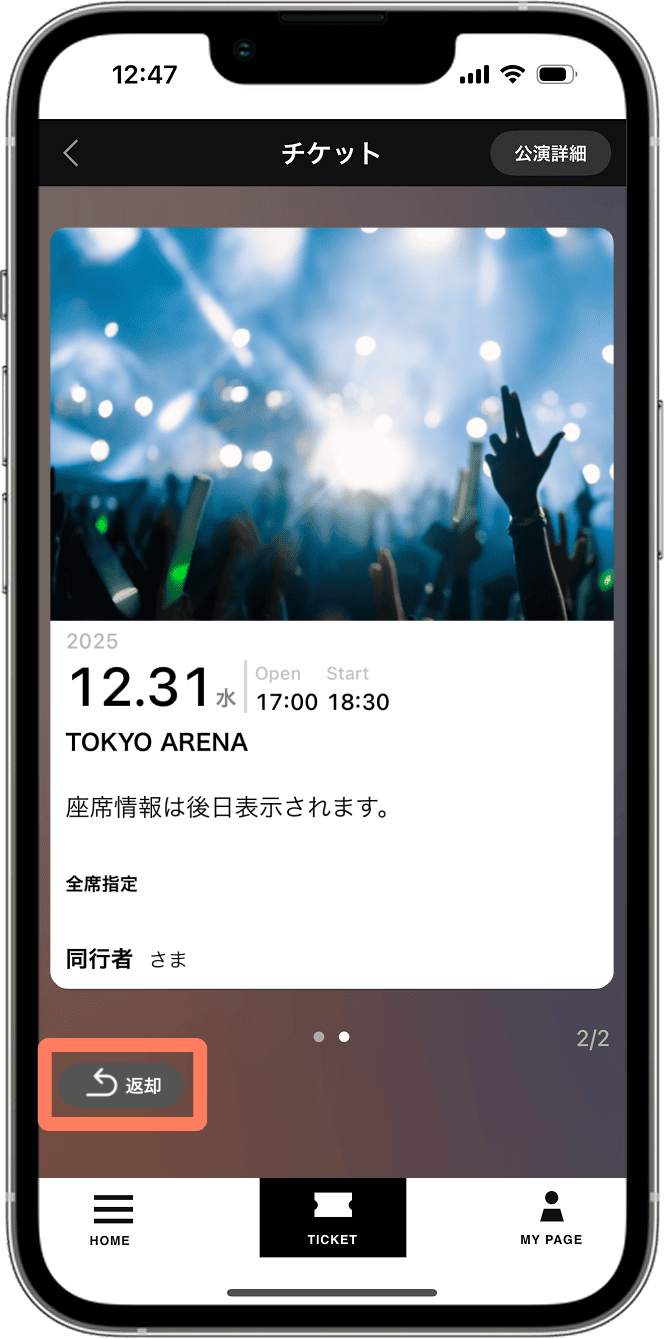
​Cancel from your companion's screen

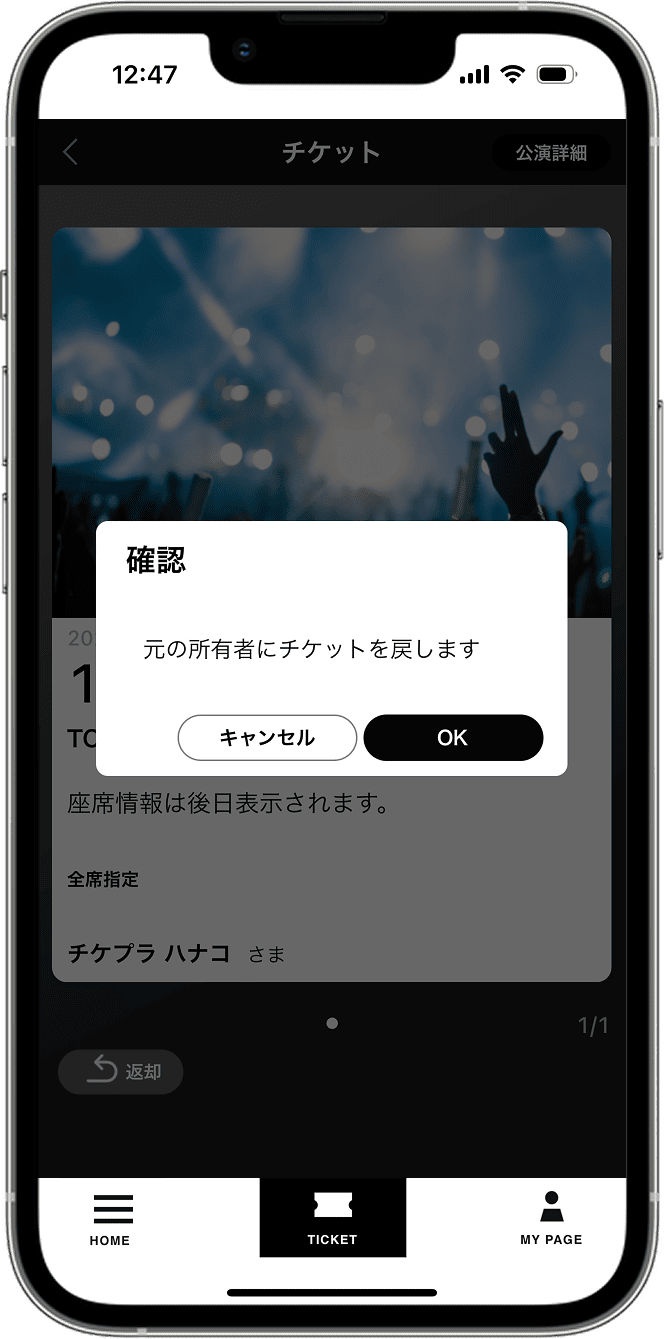
Please display the ticket screen on your companion's smartphone and press the "Return" button in the lower left corner.

Clicking OK in the pop-up will return the ticket to the applicant.

戻る
次へ

FAQ

Regarding login

I receive the message, "This phone number has already been authenticated with another ID," and I cannot log in.

It is possible that the customer has multiple accounts.
Your phone number may be linked to a Plus member ID created with a different email address in the past. If you do not recall registering with a different email address, please check below.

If you do not recognize the ID

The message says, "The email address you sent to is already registered with your Plus member ID," but I don't know my password.

Please reset your password using the link below.

Reset Password

Regarding electronic ticket issuance (collection)

I receive the message, "This smartphone's phone number does not match the phone number specified during registration," and I am unable to receive my ticket.

Please contact us using the link below, explaining why your smartphone phone number differs from the phone number you used when applying.

Contact us

The automatic pickup notification pop-up does not appear.

If your ticket does not have a pickup number included in the pickup confirmation email, and a pop-up is not appearing in the app, it is possible that you are logged into the app with a different Plus member ID than the one you used when applying.
Please verify that the ID you used when applying is the same as the ID you are currently using to log in to the app.

① If you are logged into the app with a different Plus member ID than the one used during registration.
Please delete (unsubscribe from) the ID you are currently logged in with on your TicketPlus My Page.
Please reinstall the app and log in again with the correct ID.

② If the Plus member ID used during application and the ID used to log in to the app are the same and there is no mistake, or if you are unable to unsubscribe from the ID used to log in to the app.
We apologize for the inconvenience, but please contact us using the information below.

Contact us

I don't know the receipt number (exchange number).

Ticketpla will send you an email to the email address you registered with the ticket agency (Ticket Pia, eplus, Lawson Ticket, etc.) from which you purchased your ticket.
If you are unable to receive the email, please contact us using the information below.

Contact us

I'm not sure if the ticket was issued (received) correctly.

If your ticket is displayed in the ticket list as shown below, then the ticket issuance (receipt) process is complete.

Regarding distribution

The electronic ticket cannot be distributed. (The "Share Ticket" option is not displayed on the ticket screen.)

The following are possible causes:

1. Not during the ticket distribution period

2. The performance is one where tickets cannot be redistributed.
*Not a distribution format, Performances where the applicant and accompanying person must each receive their own tickets. We also have that.

3. The ticket is distributed.
*Tickets received through distribution cannot be redistributed to others.

Please check the ticket distribution details once again on the ticket application page, purchase page, or the email notifying you when your tickets become available.

I stopped the distribution process midway, but it still displays "[Sending tickets...]" and the distribution is not complete.

Please follow the instructions on this website to cancel the ticket distribution yourself, and then try the distribution process again.

I am unable to receive the ticket using the provided URL.

If you are unable to receive your ticket, the following may be the reason.

1. Your companion may have already received their ticket. First, please have your companion try closing and reopening the app, or refreshing the page, to see if they have received their distributed ticket correctly.

2. In some cases, the ticket distribution process may not have worked correctly due to communication issues or other reasons. We apologize for the inconvenience, but please have the accompanying person receiving the distributed ticket launch the app, display the ticket list screen, and then try the distribution URL sent by the applicant again.

3. Your companion may have opened the ticket redemption page using the in-app browser of LINE or email. Please try opening it in a regular browser such as Safari or Google Chrome and attempt to redeem the ticket.

4. The accompanying person receiving the distributed ticket has not downloaded or logged into the app.

5. The receiving URL has expired.

6. I have already received a ticket that was distributed to someone else.

Please note that in the above cases, you will not be able to receive the item.

Can the tickets of applicants be distributed?

Depending on the performance, the applicant's ticket (first ticket) cannot be distributed. If you are unable to attend the performance, please use Ticket Trade.

*For some performances, the applicant's ticket may also be distributed. In such cases, the first ticket will also be selectable as a ticket to be distributed. If the first ticket cannot be selected, it means that the applicant's ticket (first ticket) cannot be distributed for that performance.

Ticket Trade

If the above does not resolve the issue,
Please check here.

Go to Help